



February 28, 2020
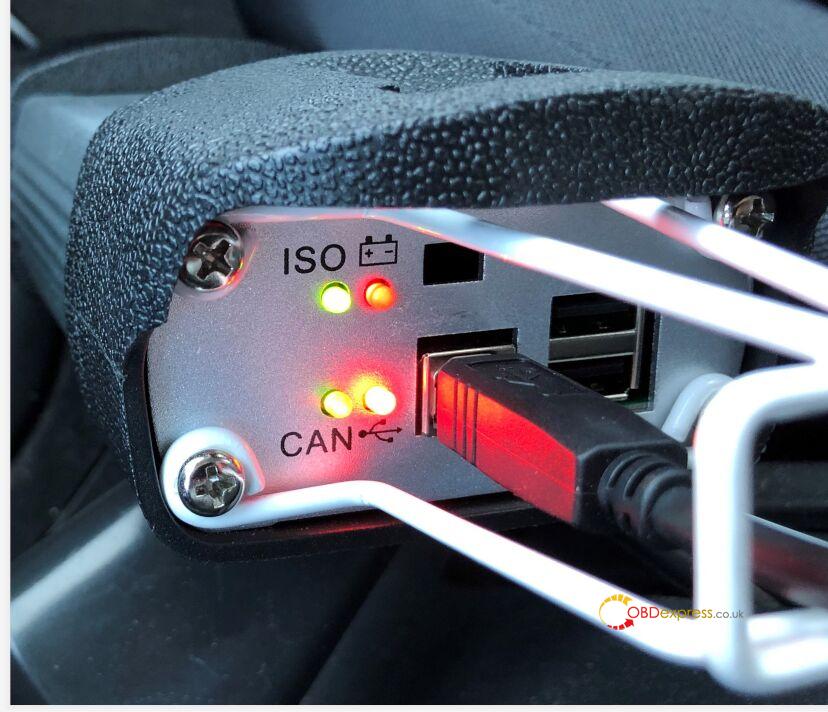
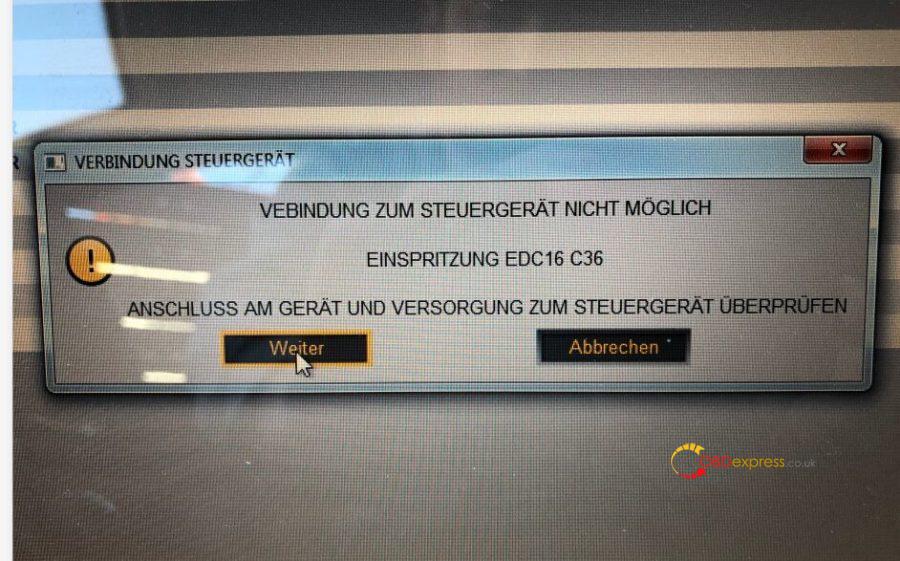
Renault can clip V193 problem: During normal operation, the CAN and USB LEDs flash. After a few minutes, the device started ticking, and then a "connection lost" message appeared. Then, the LED stays on.
Sometimes the device ticks again after a few seconds, I can continue, sometimes not. Then I had to plug it back in and start over.
obdexpress.co.uk engineer working solution:
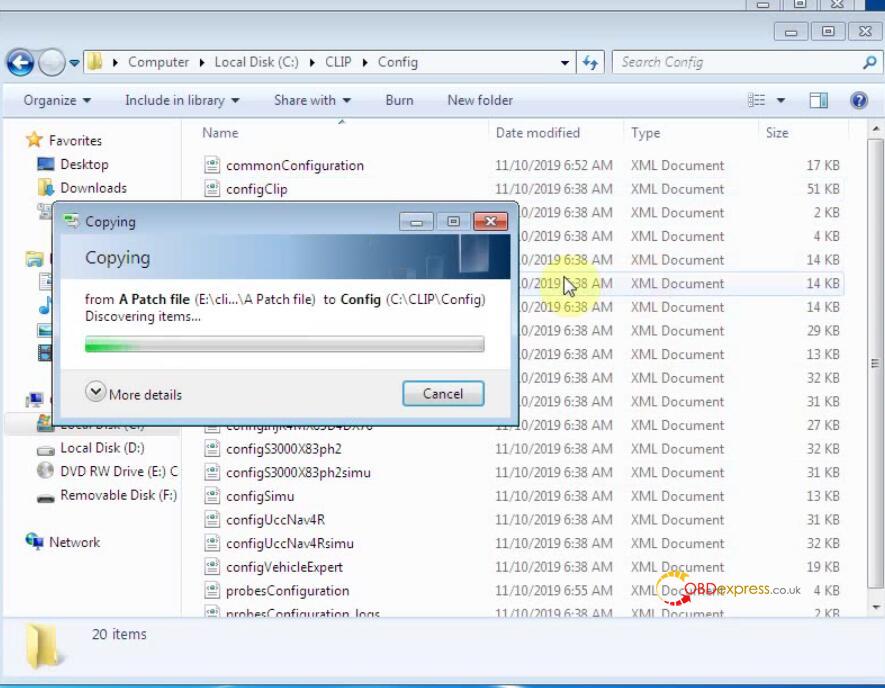
Please free download the following two files, then copy them to Computer -> Local Disk (C ->Clip -> Config to replace the original ones. Then problem will be solved.
probesConfiguration_logs.xml
https://mega.nz/#!9V4ADQhb!Iv2O0iJ3eKTpoFqmmEf82gz_9MW5W5ioQ5NtPpRpBSQ
probesConfiguration.xml
https://mega.nz/#!MN5SWACb!ESkykTpTq2U9HvhZqQZj9hJQTA8sEdHpbRojbmuDxqs
Good luck!
Source:http://blog.obdexpress.co.uk/2020/02/28/solved-v193-can-clip-renault-connection-lost/
Posted by: OBDexpress.co.uk at
03:27 AM
| No Comments
| Add Comment
Post contains 108 words, total size 3 kb.
February 27, 2020
It's confirmed Ford Mondeo 1,6 SCTi 160 HK odometer adjustment can be done by Digimaster 3. Go on reading for the procedure.
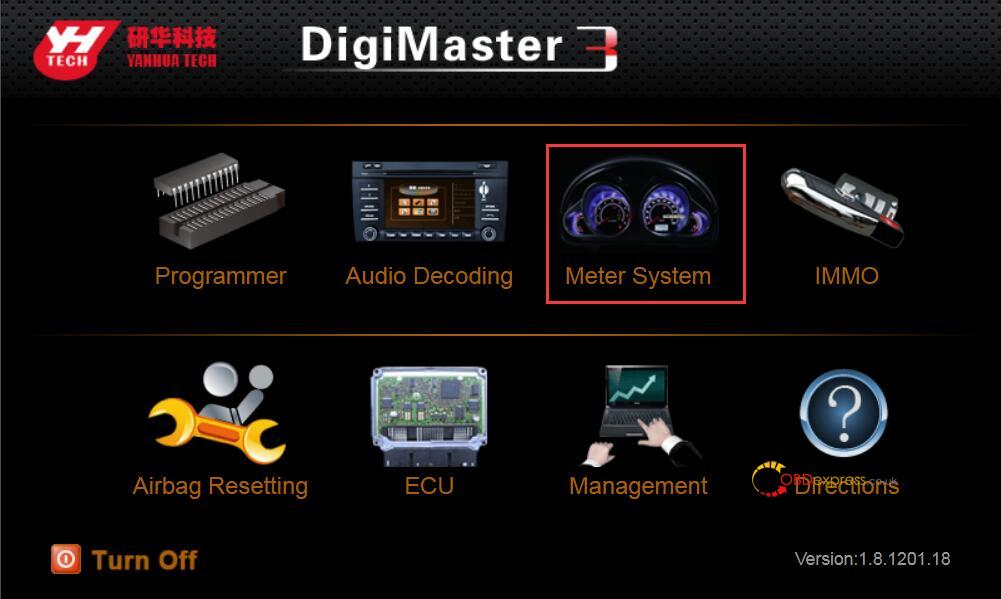
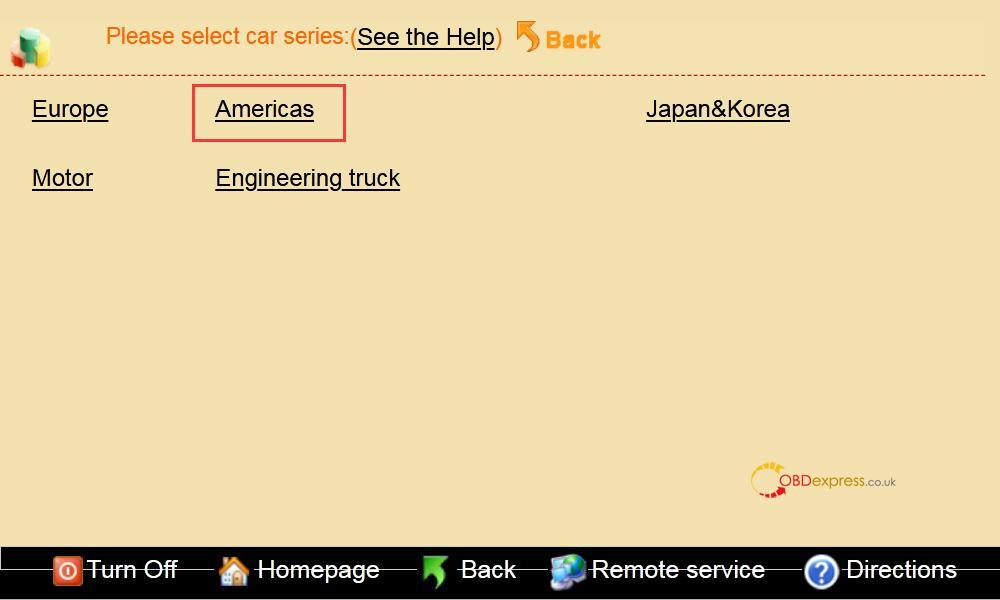
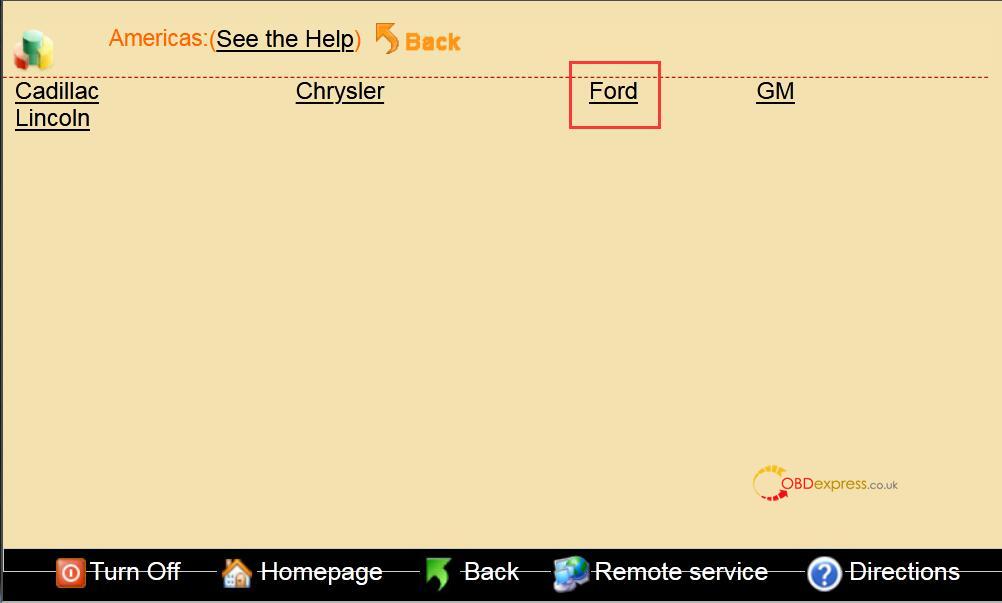
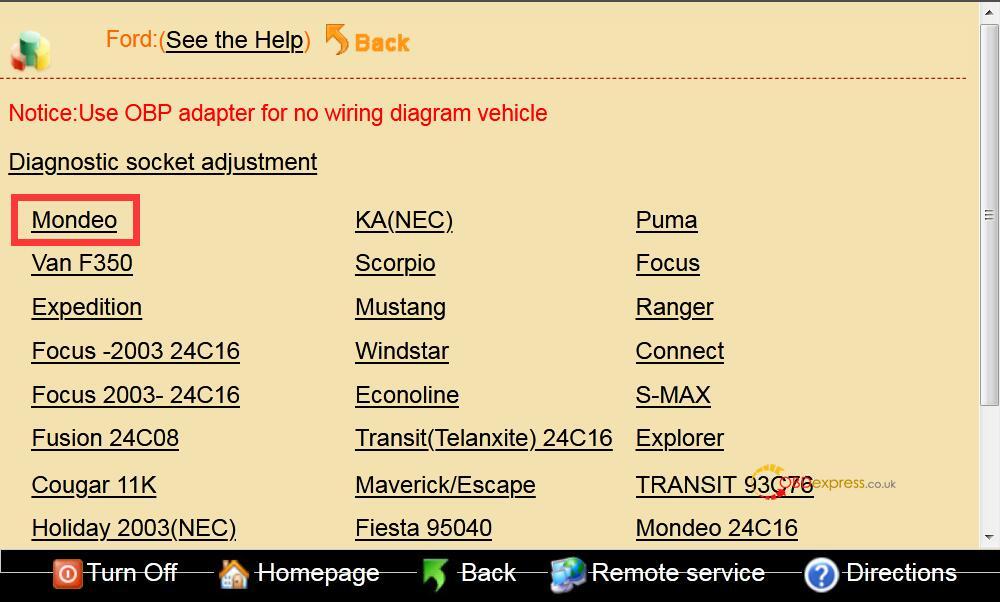
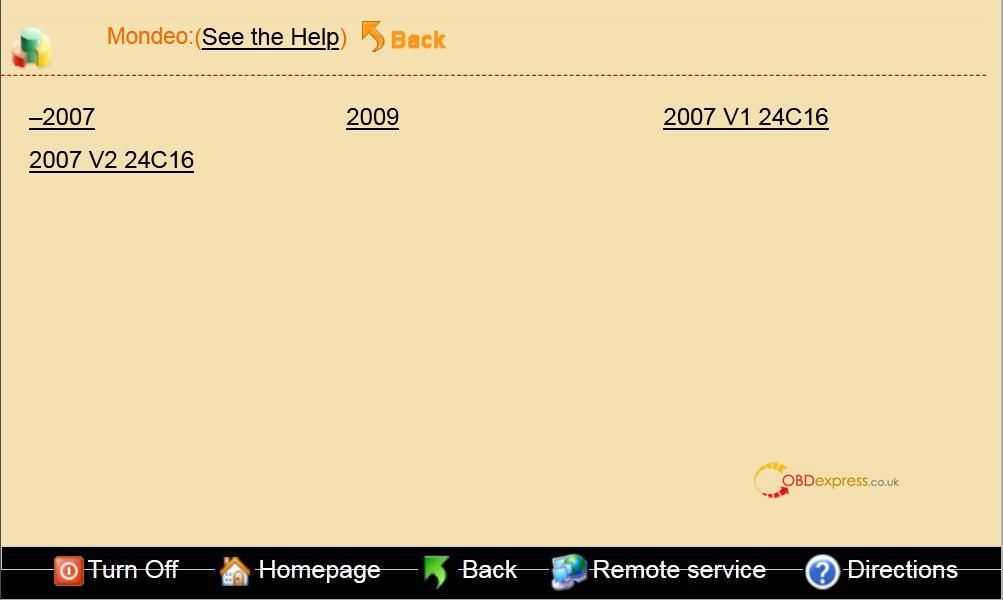
- Click on the "Meter system" button on the home page, then car series "Americas", then "Ford", then "Mondeo", then year.
- Remove chip or welding cable
It will shows the detail information after choose the corresponding model, as the chip model, power-map.
Based on the chip model and power-map (Because some odometer chip contains a multi-block, or there are other considerations) to find the chip on the odometer PCB, remember that direction then removed it, installed on universal adapter, If the original chips have been damaged or adjusted by the new chips please use the same model; This is the Split-free chip, Please connect the cable refer to the wiring diagram from software, and then plug the ICP to the 25 pin socket of the SET MASTER.
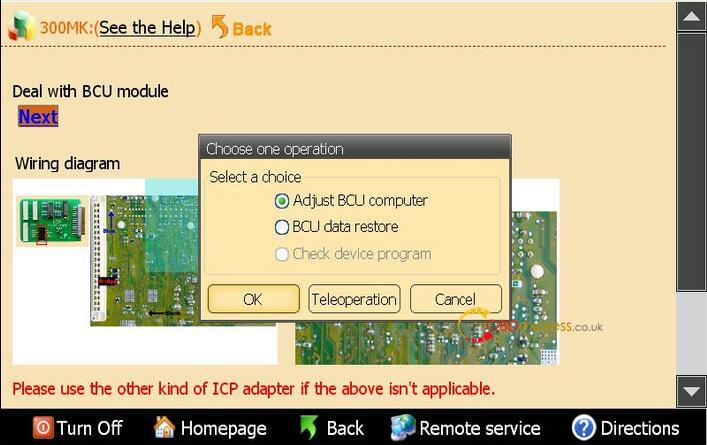
Click "OK" on the dialog box as the upper picture, the meter will read the device data immediately.
- Input mileage
1). Click "yes" the device will save the data of chip automatically,and will point its name and location.
2). The follow window means the original data of the chip have saved.
2.1). Input the mileage you want on the write box then click HOK".
2.2). For there are not only mileage data on the odometer chip, so please write the original data on the new chip before adjusting, then write the mileage.
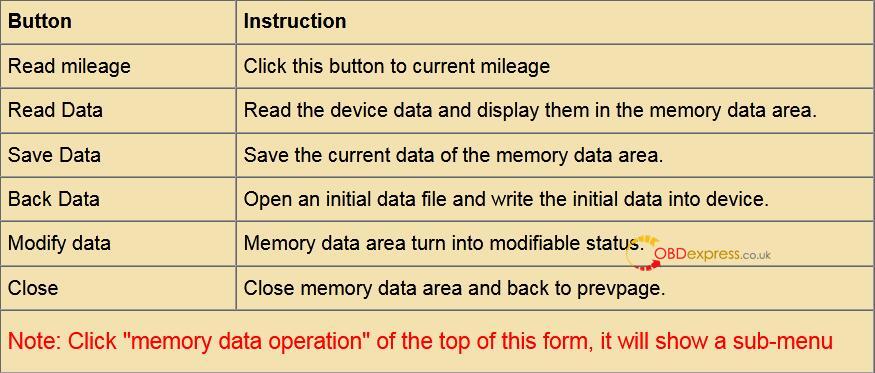
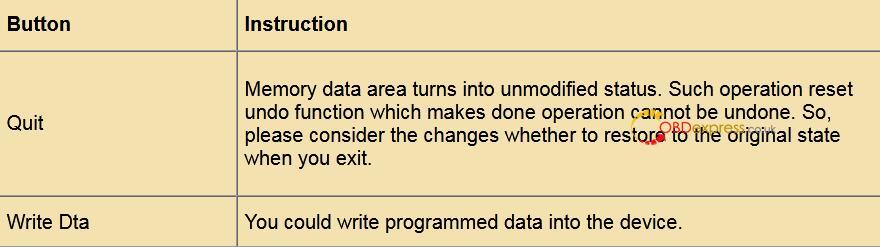
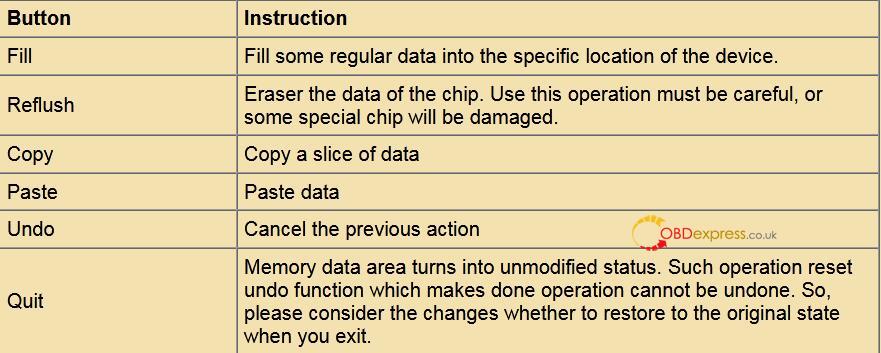
2.2.1) Click the "cancer* as the follow picture, then click "restore the original data", choose the original data to write the chip, the device supply the most of cars original data, if there is not, please collecting, take out the chip in the odometer, read the data then save it.
2.2.2). First close the memory data area after restoring data, then you can adjust mileage as above steps.
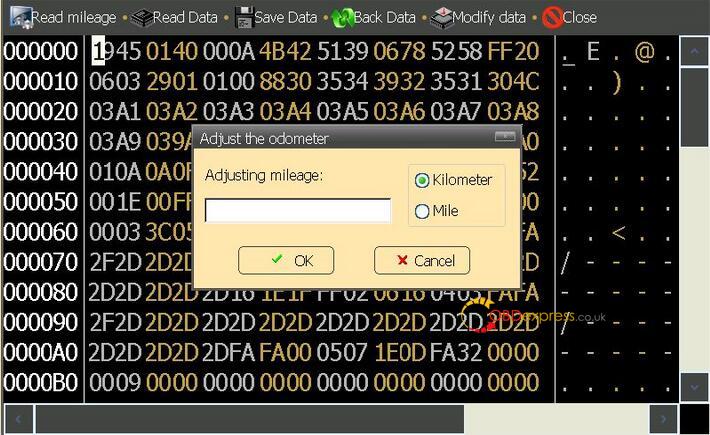
3). Quit after successful adjustment prompt, removed the welding line and then clean the circuit board.
- Modify data
If no need to modify the inner data of the chip after successful adjustment, please take the chip back odometer to finish the operation, or you can skip this step.
1). click "modify data", the data of memory data area will change into editable state, modify the data by cursor directly.
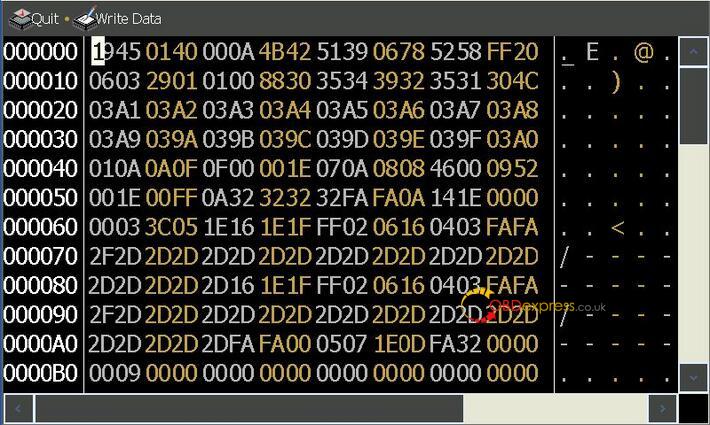
If the chip of the car model is IC type, then the interface is as follows when click "Modify data".
Enjoy!
Digimaster 3 tech support by www.obdexpress.co.uk
Source:http://www.mileageprogrammer.com/ford-mondeo-16-scti-160-hk-odometer-adjust-by-digimaster-3/
Posted by: OBDexpress.co.uk at
08:16 AM
| No Comments
| Add Comment
Post contains 416 words, total size 6 kb.
February 26, 2020
Mercedes Benz C6 with Xentry V2019.12 got error "No access authorization code! Please contact the User Help Desk". The solution is to open the "Xentry License" to active Xentry.
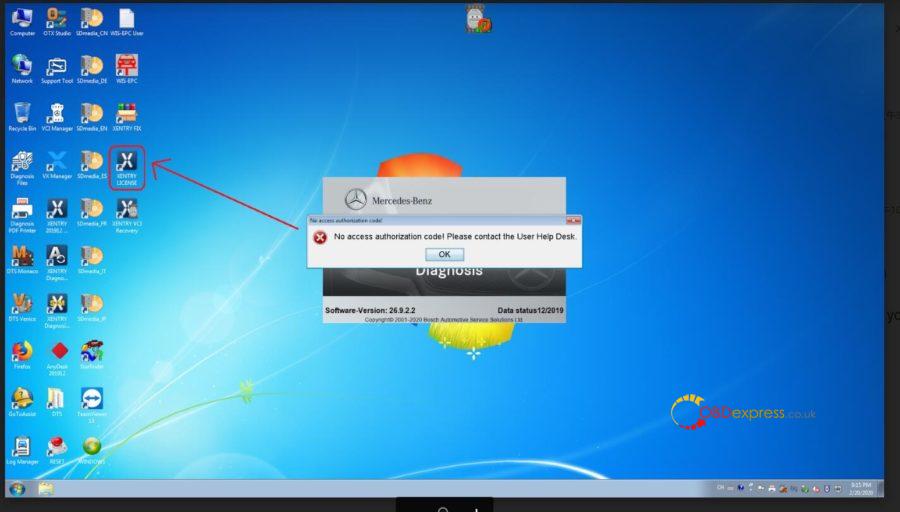
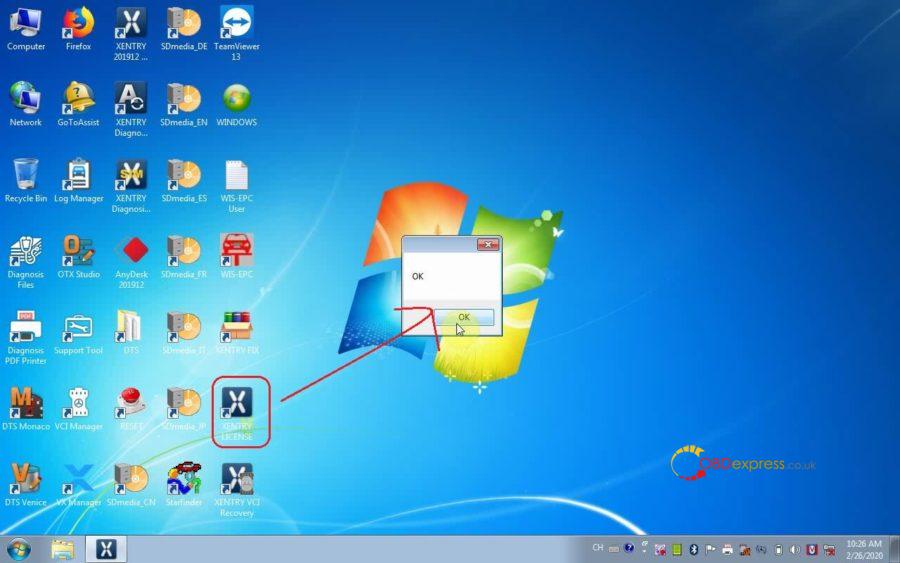
Open "Xentry License", click on "Ok".
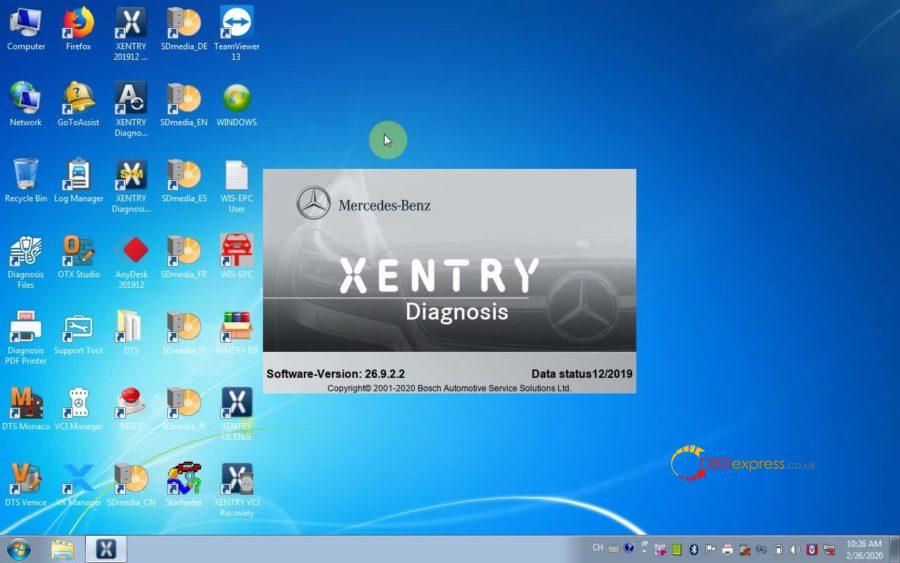
Open "Xentry 201912 Diagnosis" on the desktop.
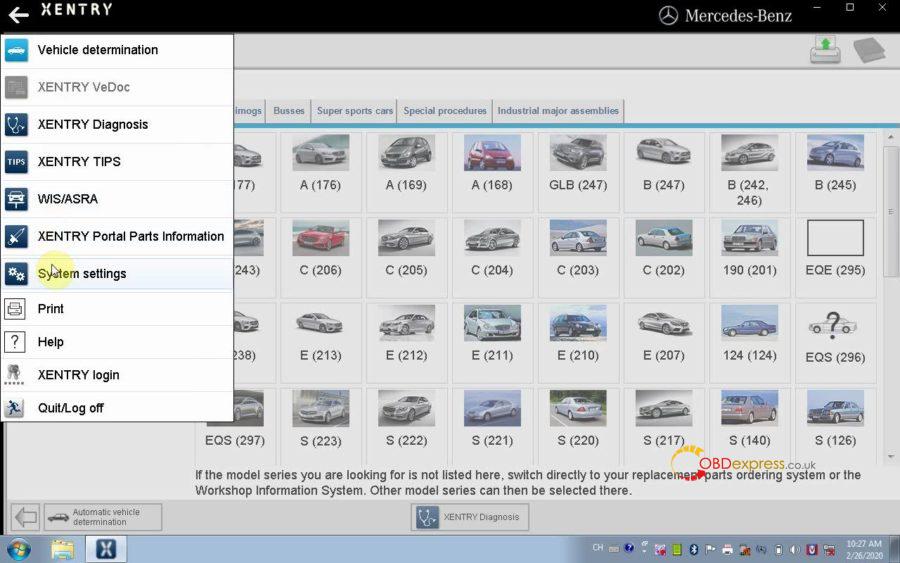
Enter "System Settings".
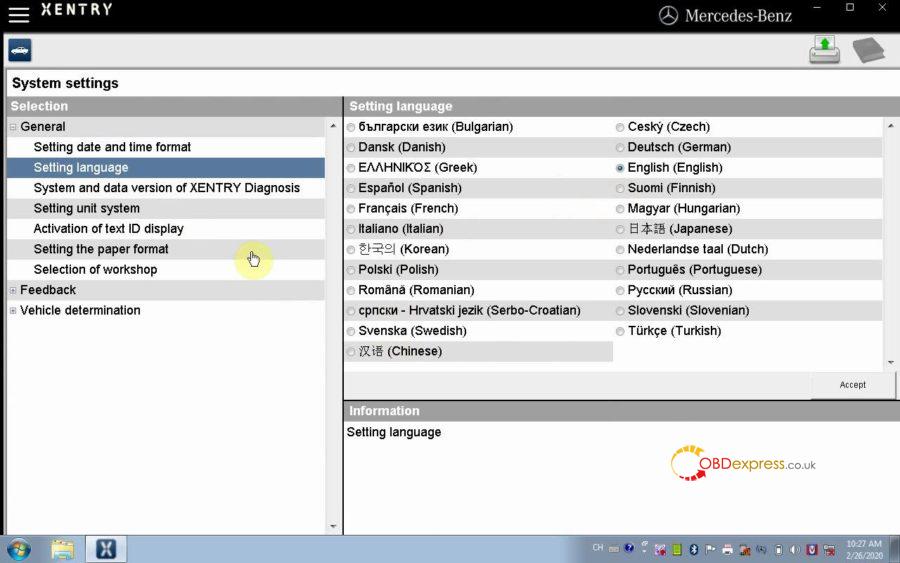
Setting Language.
Choose "Vehicle determination", then you can diagnose Passenger car, Van, truck, unimogs, busses, Super sports cars, special procedures, industrial major assemblies.
Quit / Log off Xentry.
Part 2: Open WIS-EPC to active.

Input user: admin and password: 12345
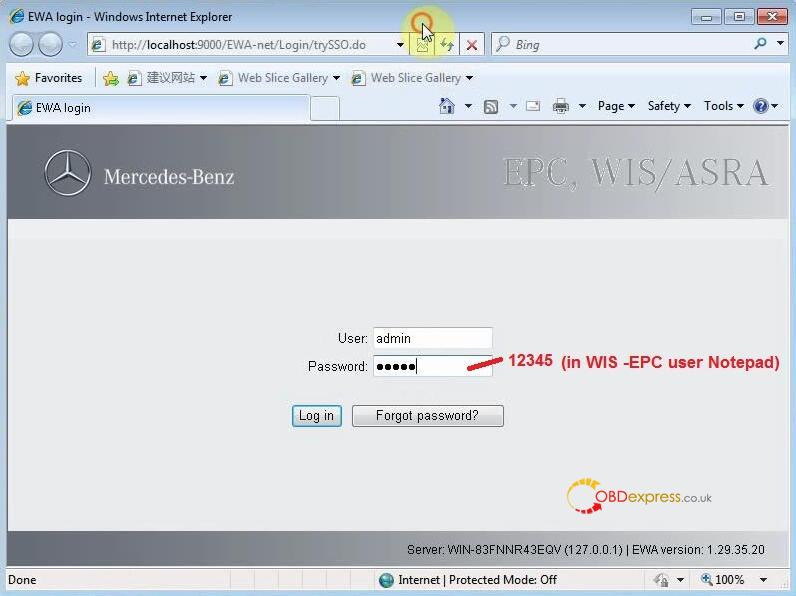
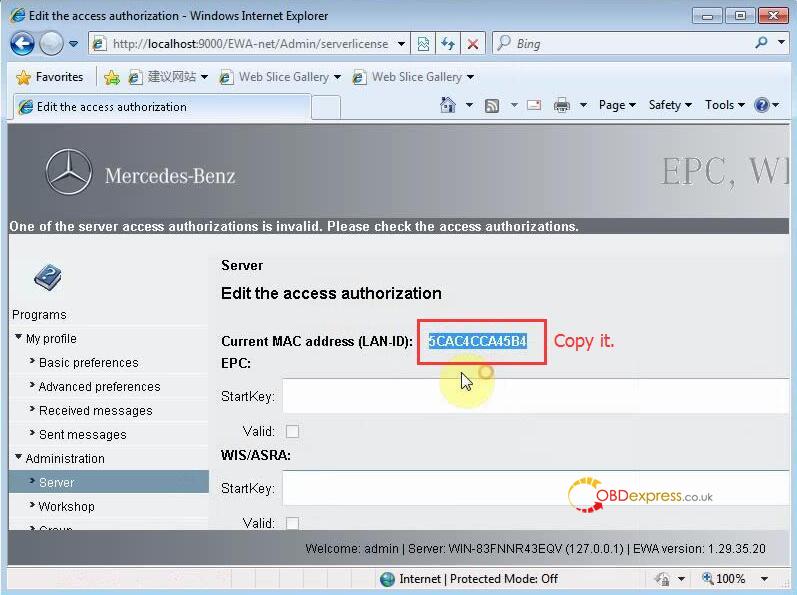
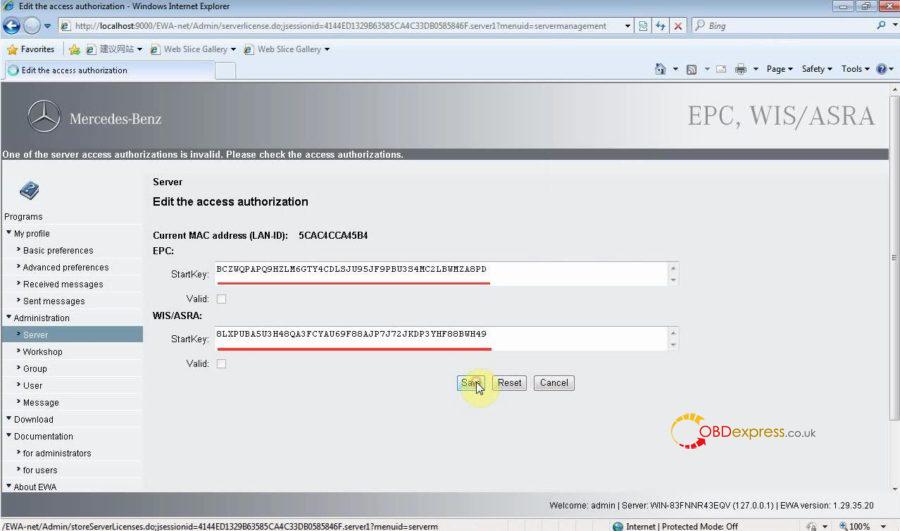
Administration -> Server -> Edit the access authorization.
Copy Lan-ID.
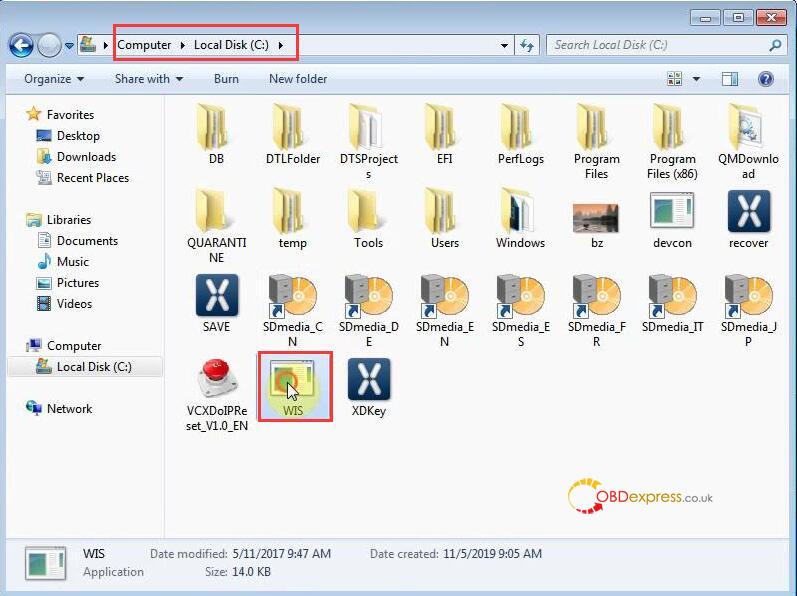
Open "Computer", then "Local Disk (C
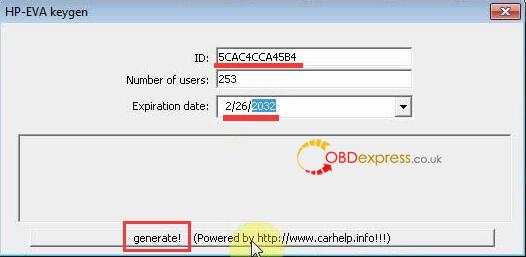
, then "WIS", paste the Lan-ID in the HP-EVA keygen, number of users 253, expiration date 2/26/2032, click on "generate".
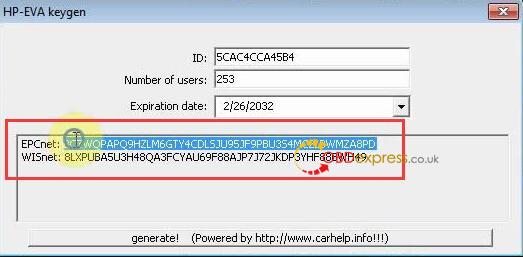
Obtain EPCnet and WISnet, firstly copy EPCnet and paste it into the EPC StartKey.
Then copy WISnet and paste it into WIS /ASRA StartKey.
Click on "Save".
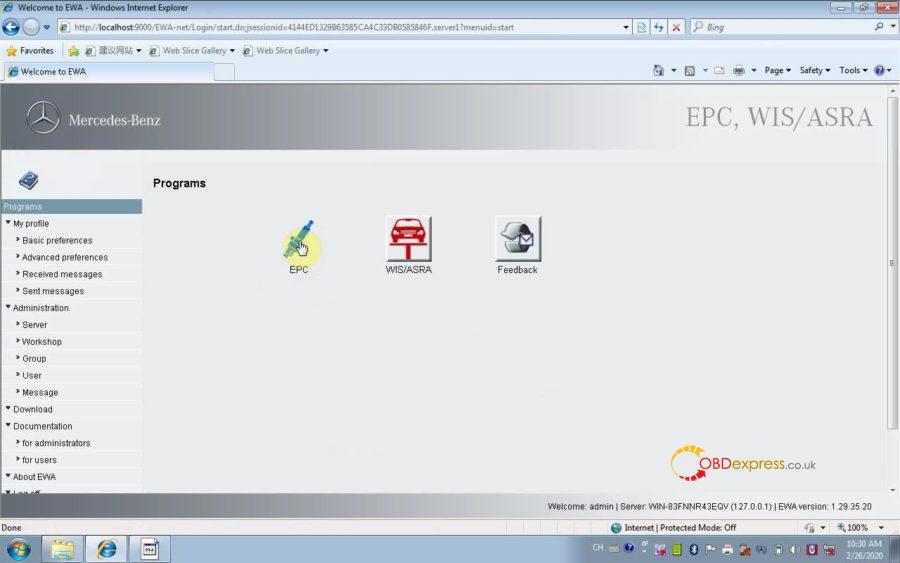
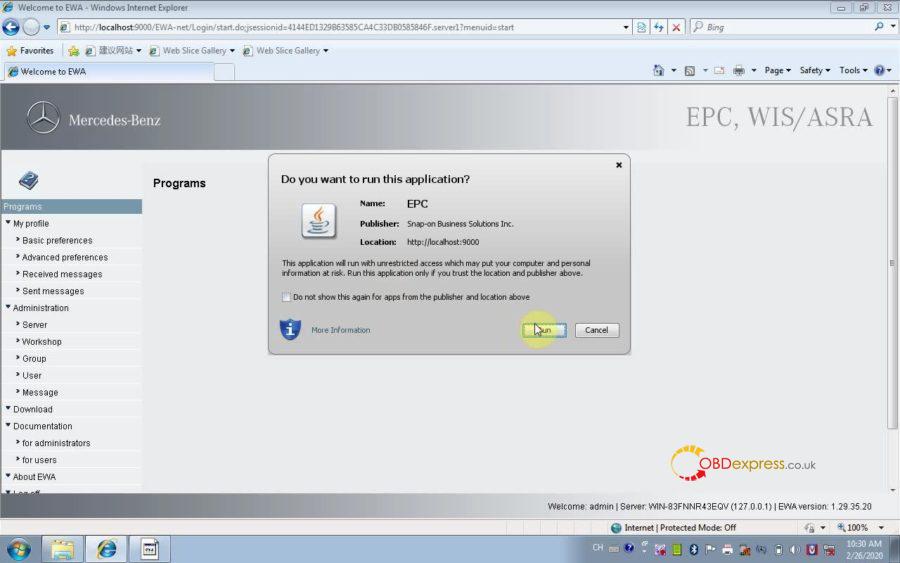
Click on "Programs", then "EPC", click on "Run" all app.
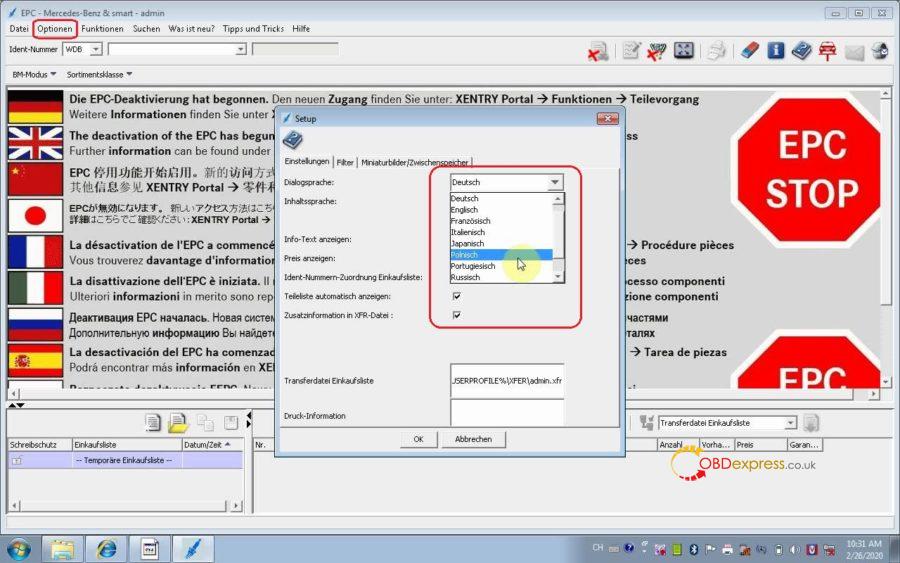
Select "Optionen", then "Setup F2", select language.
Ready to select vehicle type to continue.
Exit EPC.
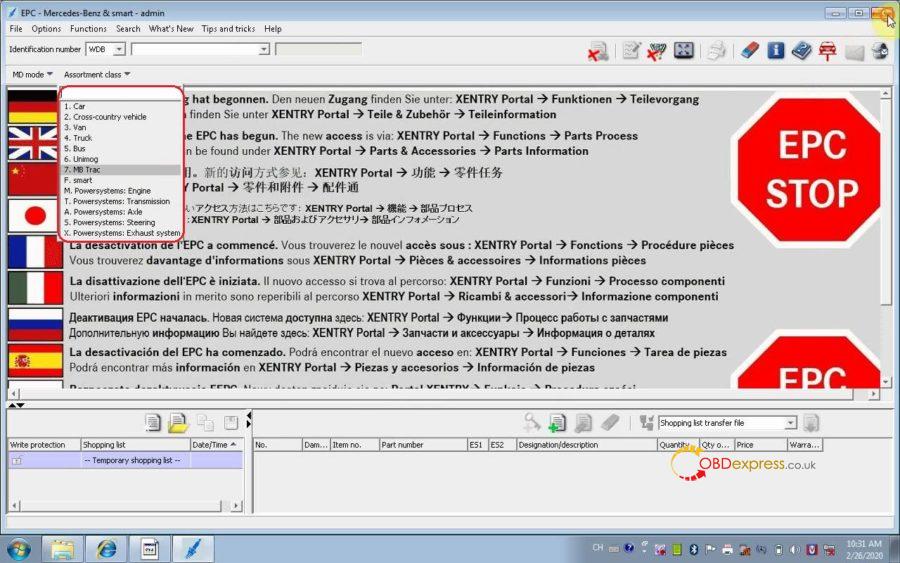
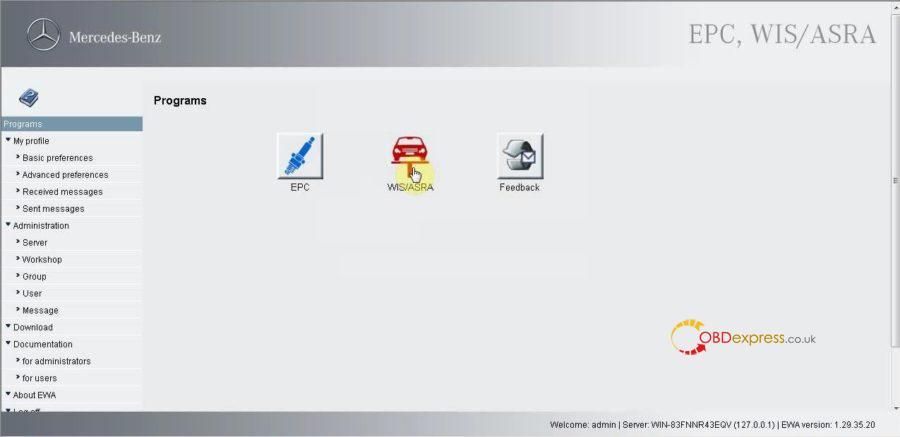
Back to open "WIS /ASRA".
Downloading application.
Run.
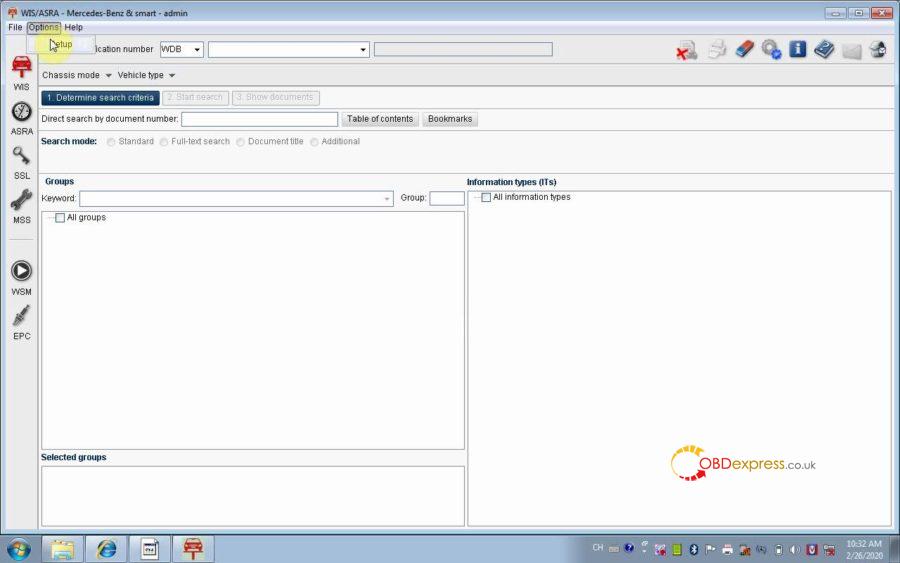
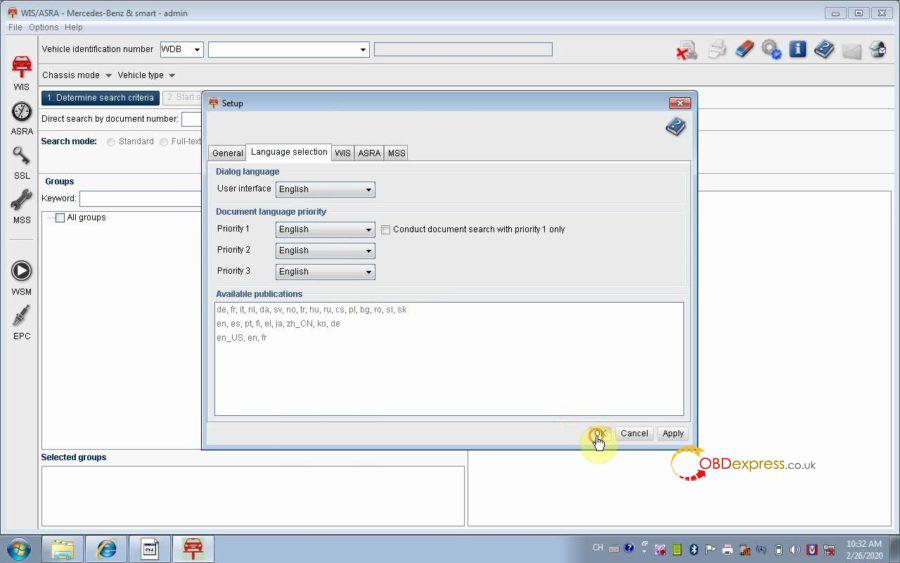
Enter WIS/ASRA, select "Options" then "Setup", select the language.
Done
vxdiag Benz Xentry EPC WIS activation all right.
Posted by: OBDexpress.co.uk at
08:51 AM
| No Comments
| Add Comment
Post contains 210 words, total size 9 kb.
Mercedes Benz C6 with Xentry V2019.12 got error "No access authorization code! Please contact the User Help Desk". The solution is to open the "Xentry License" to active Xentry.
Open "Xentry License", click on "Ok".
Open "Xentry 201912 Diagnosis" on the desktop.
Enter "System Settings".
Setting Language.
Choose "Vehicle determination", then you can diagnose Passenger car, Van, truck, unimogs, busses, Super sports cars, special procedures, industrial major assemblies.
Quit / Log off Xentry.
Part 2: Open WIS-EPC to active.
Input user: admin and password: 12345
Administration -> Server -> Edit the access authorization.
Copy Lan-ID.
Open "Computer", then "Local Disk (C
, then "WIS", paste the Lan-ID in the HP-EVA keygen, number of users 253, expiration date 2/26/2032, click on "generate".
Obtain EPCnet and WISnet, firstly copy EPCnet and paste it into the EPC StartKey.
Then copy WISnet and paste it into WIS /ASRA StartKey.
Click on "Save".
Click on "Programs", then "EPC", click on "Run" all app.
Select "Optionen", then "Setup F2", select language.
Ready to select vehicle type to continue.
Exit EPC.
Back to open "WIS /ASRA".
Downloading application.
Run.
Enter WIS/ASRA, select "Options" then "Setup", select the language.
Done
vxdiag Benz Xentry EPC WIS activation all right.
Posted by: OBDexpress.co.uk at
08:51 AM
| No Comments
| Add Comment
Post contains 210 words, total size 9 kb.
A part of users feedback " I can't see the images on Scania Multi 12.2018 after installing the software. " obdexpress.co.uk engineer replied " It is related to browser / computer operation system / computer, best run Multi software on win7 or XP, try WIN8 10 at your own lucky.
How to install Scania Multi 1812 [12.2018] on Win7?
Words & Images:
Part 1: Insert DVD1 to install.
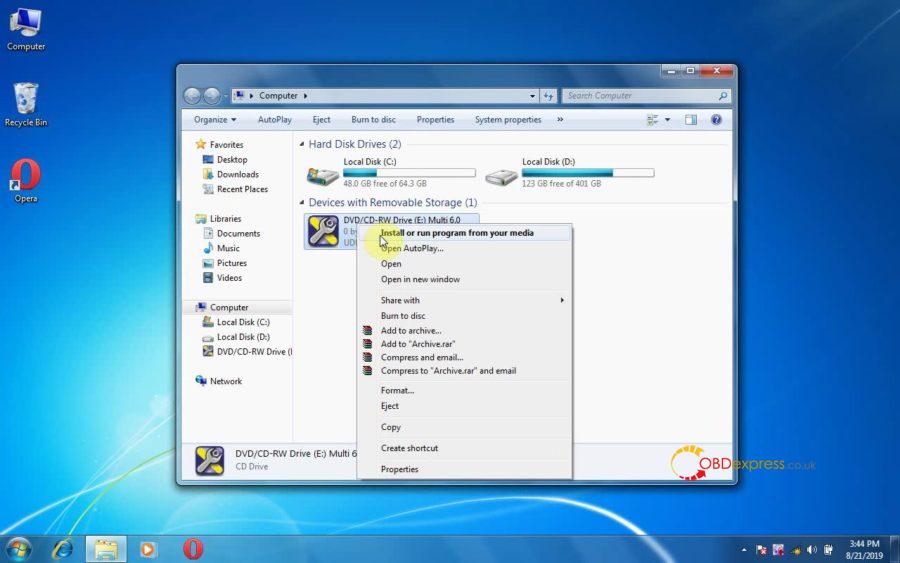
Open my computer, right click on DVD (Multi 6.0) to select "Install or run program from your media.
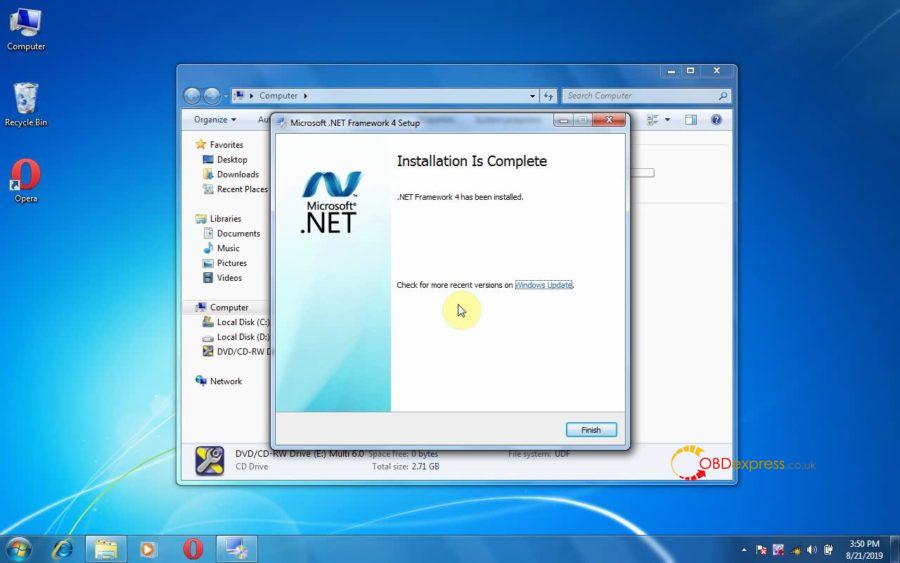
If you get message that the computer needs .Net Framework 4.0 for Multi installation to complete. Please click on "OK" to install.
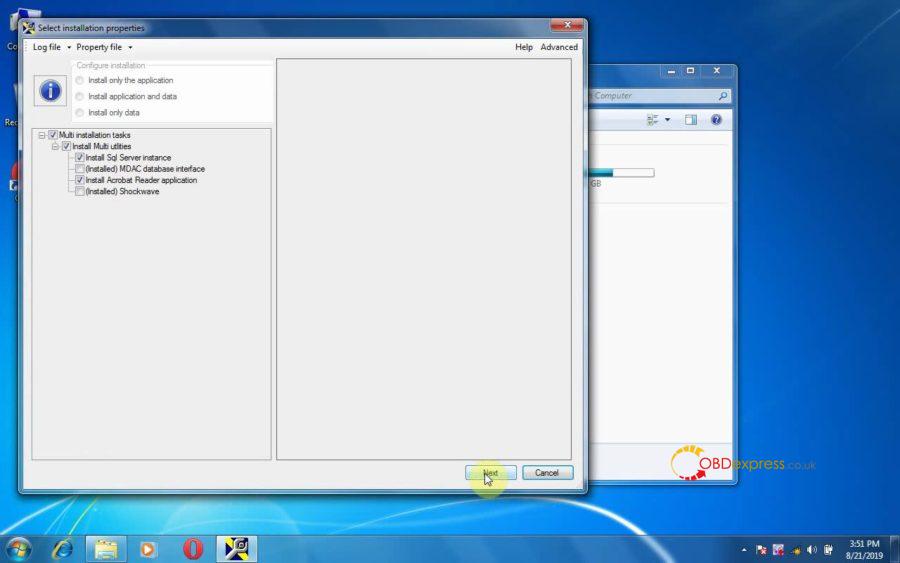
Tick "Accept the license to continue the installation".
Click on Next.
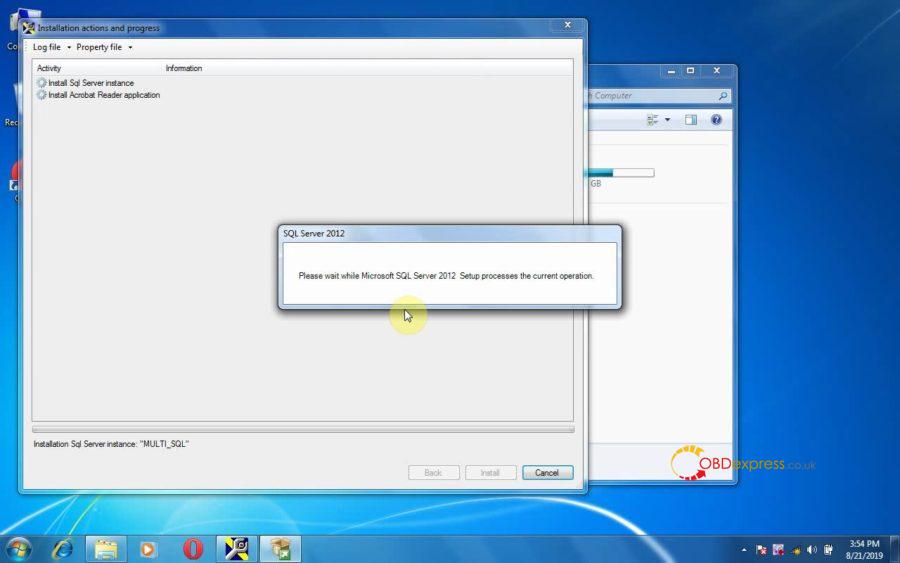
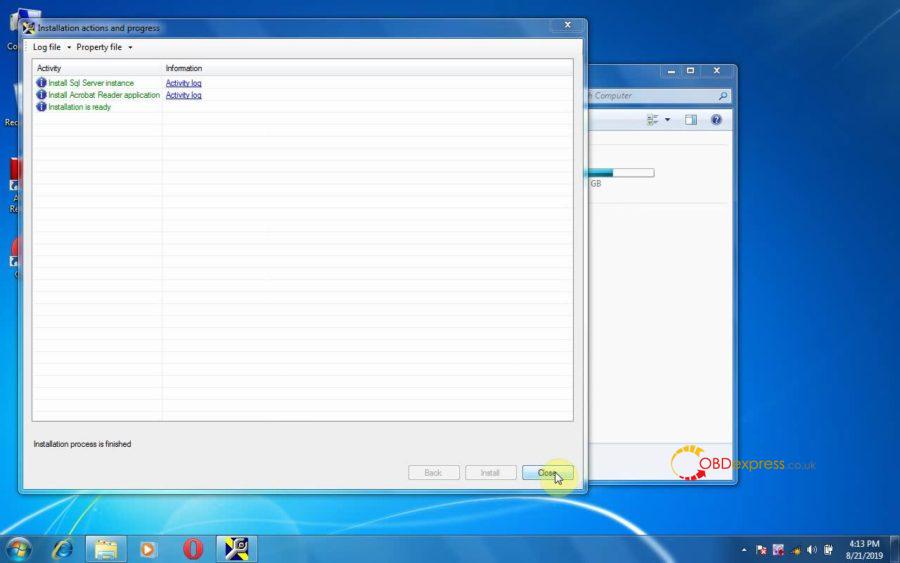
Install (Sql Server instance, Acrobat reader application)
Extracting files.
Please wait while Microsoft SQL Server 2012 Setup processes the current operation.
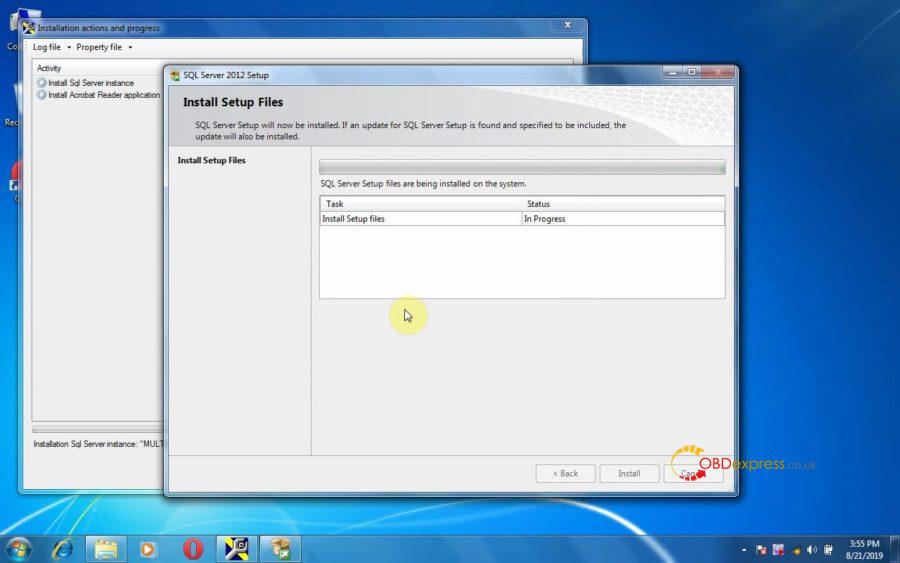
Install setup files.
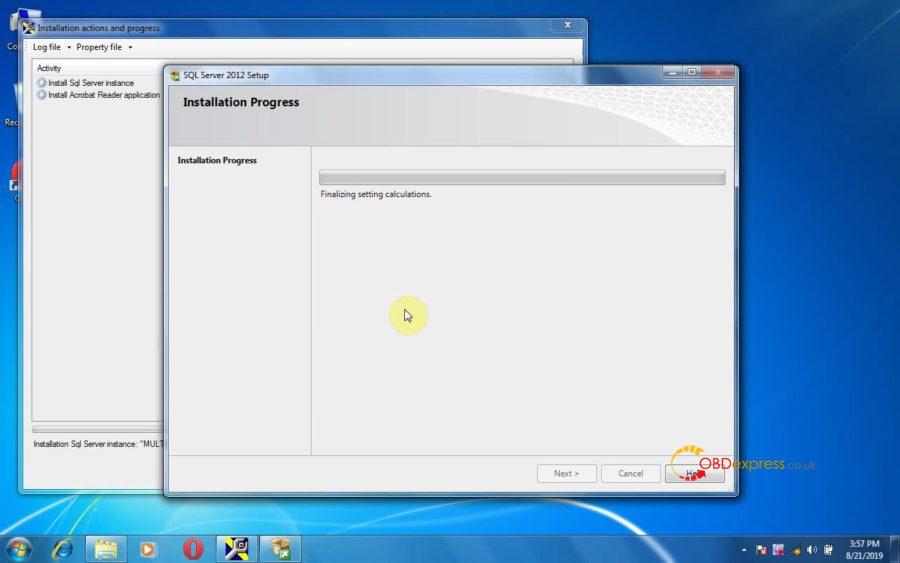
Finalizing setting calculations.
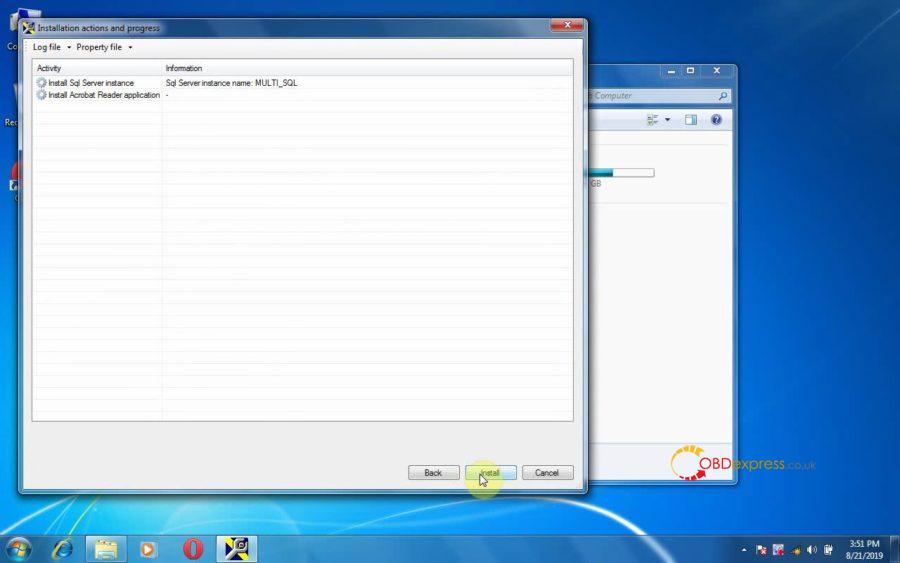
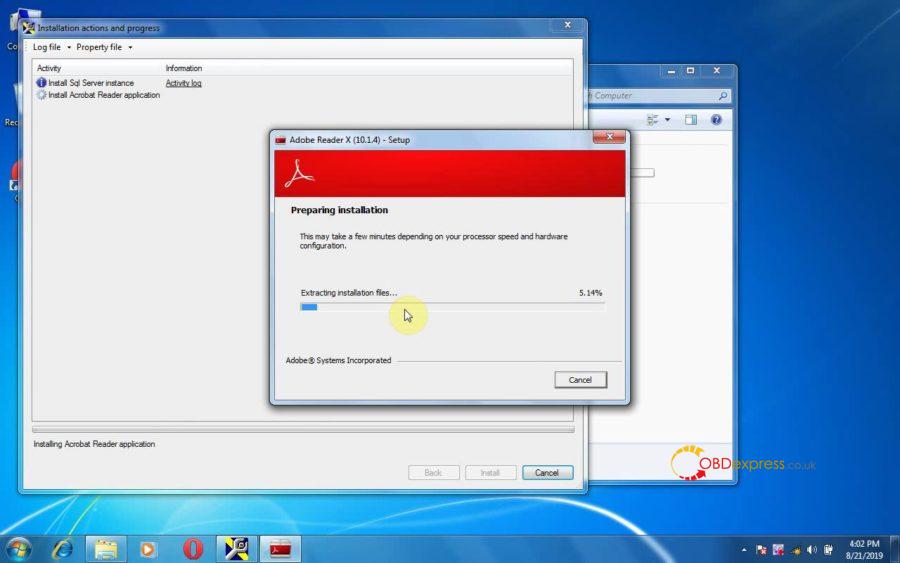
Adobe Reader X (10.1.4) setup.
Back to right click on DVD, then select "Run Setup.exe".
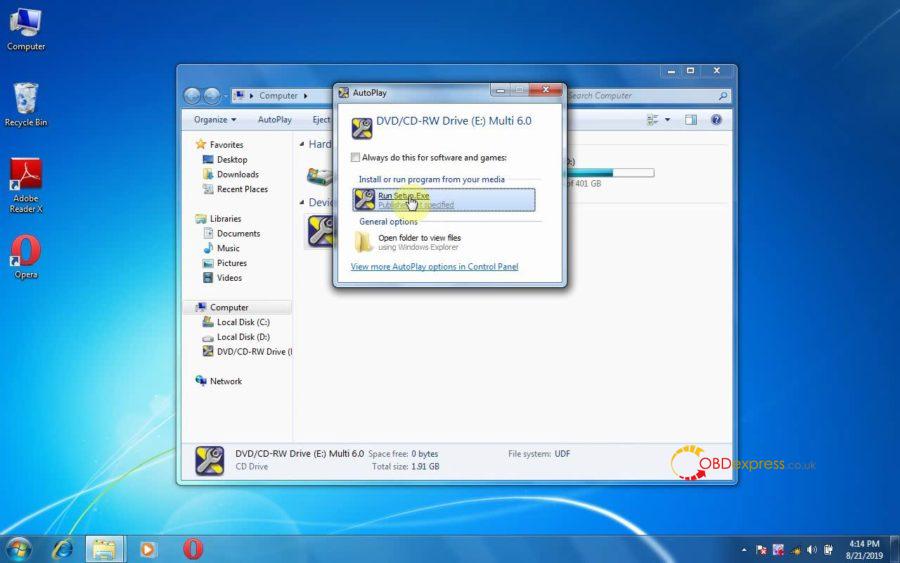
Tick "Accept the license to continue the installation".
Next.
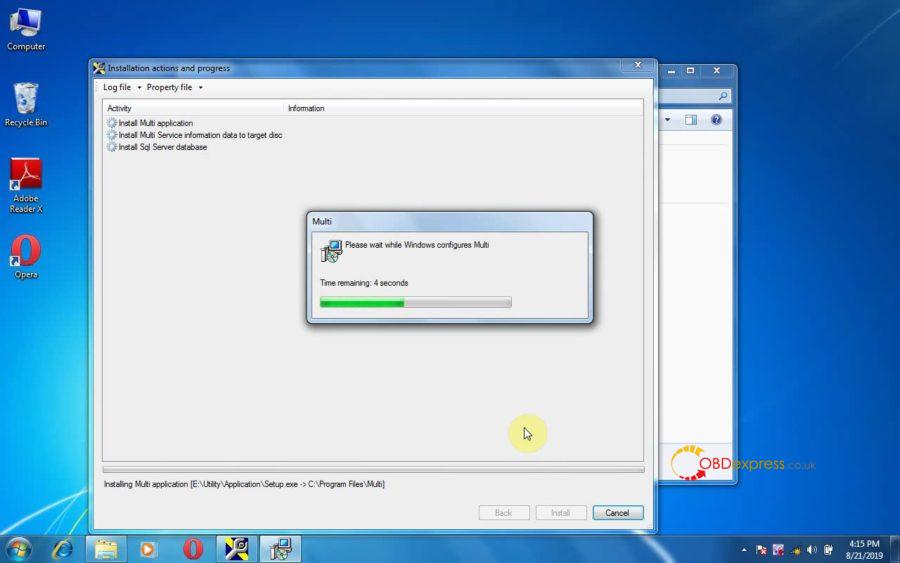
Windows install.
Please wait while Windows configures Multi.
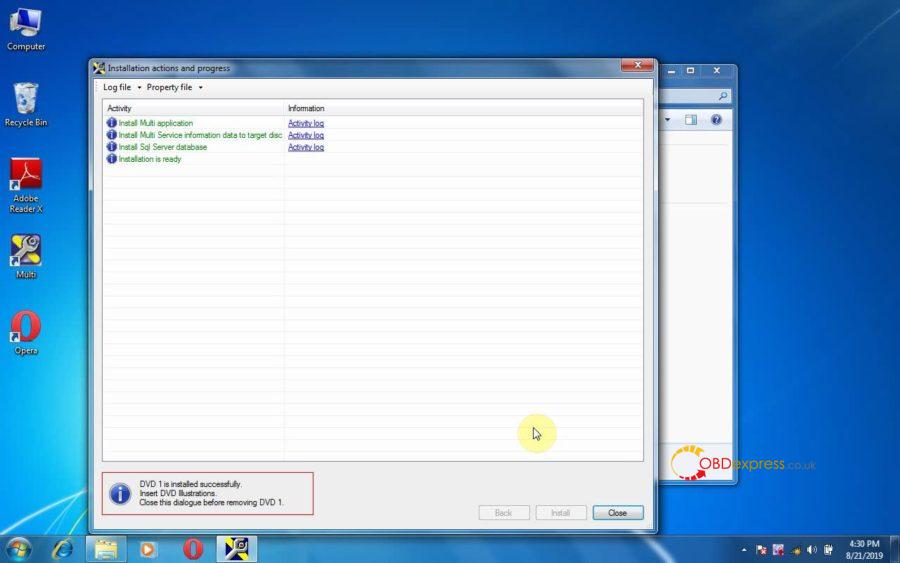
DVD 1 is installed successfully. Insert DVD illustrations. Close this dialogue before removing DVD1.
Part 2: Insert DVD illustrations
Right click on DVD, choose "Run Setup.exe".
Accept the license.
Next.
Extract 64327 files from archive E.
DVD Illustrations is installed successfully.
Insert DVD2 with your servinfo language.
Close this diaglogue before removing DVD illustrations.
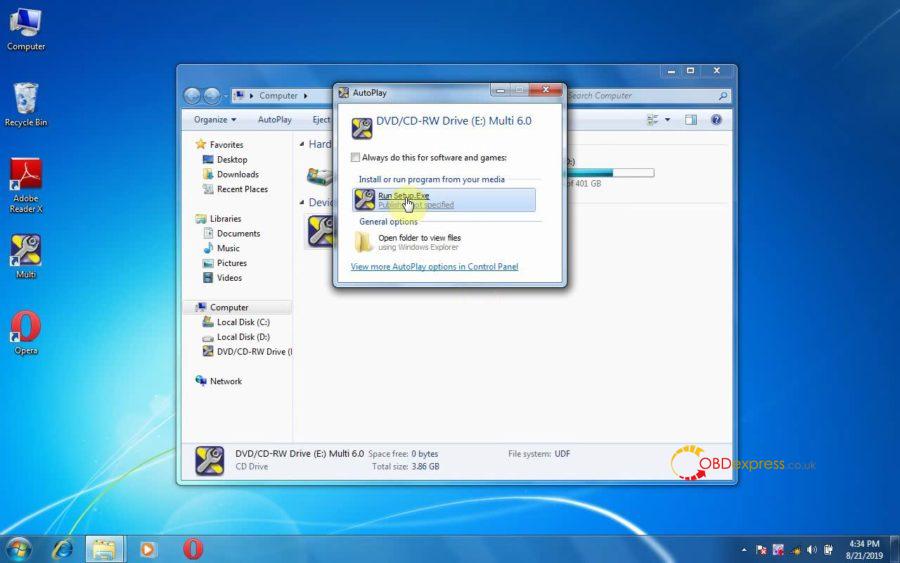
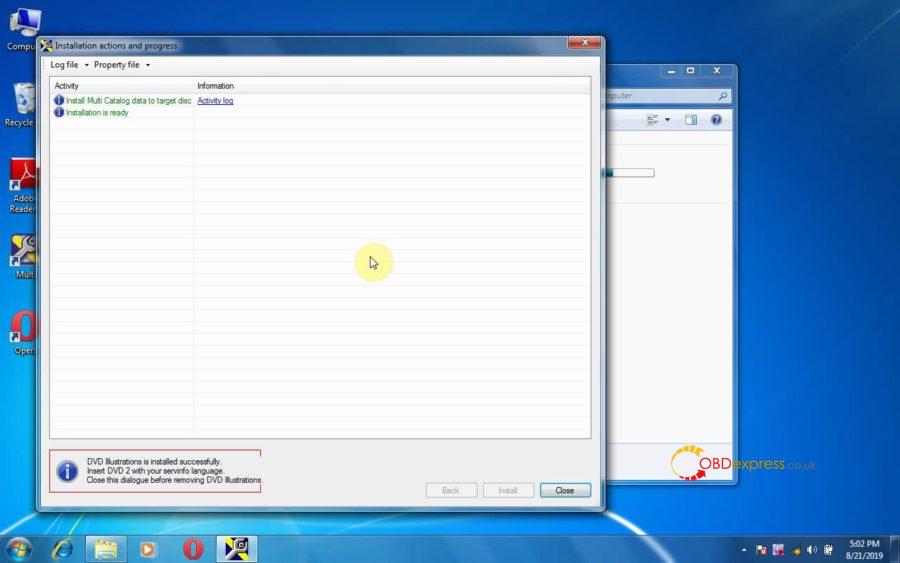
Part 3: Insert DVD2 to install.
Right click on DVD, choose "Run Setup.exe".
Accept the license.
Next.
Install.
Extract 2313 files from archive E.
Installation process is finished.
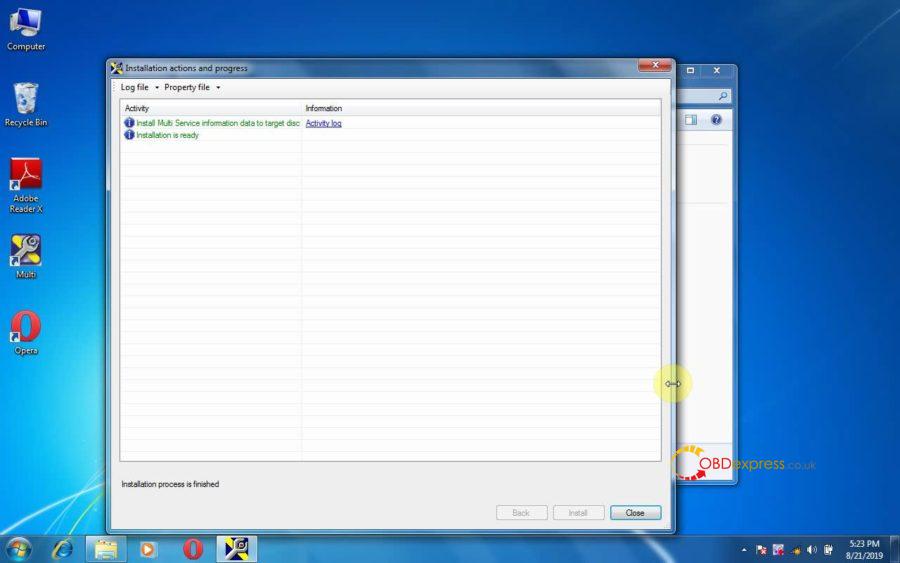
Part 4: Run Multi
Right click on "Multi" on the desktop to open.
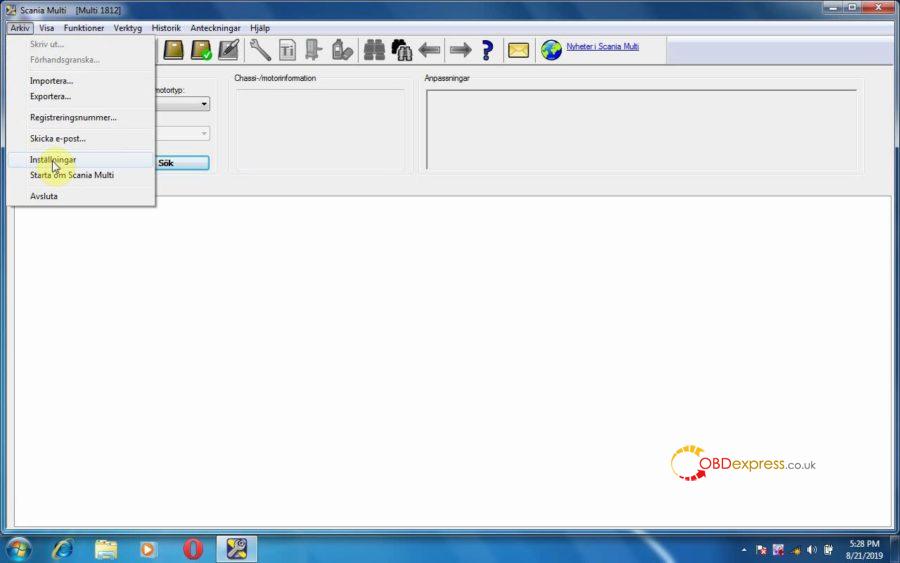
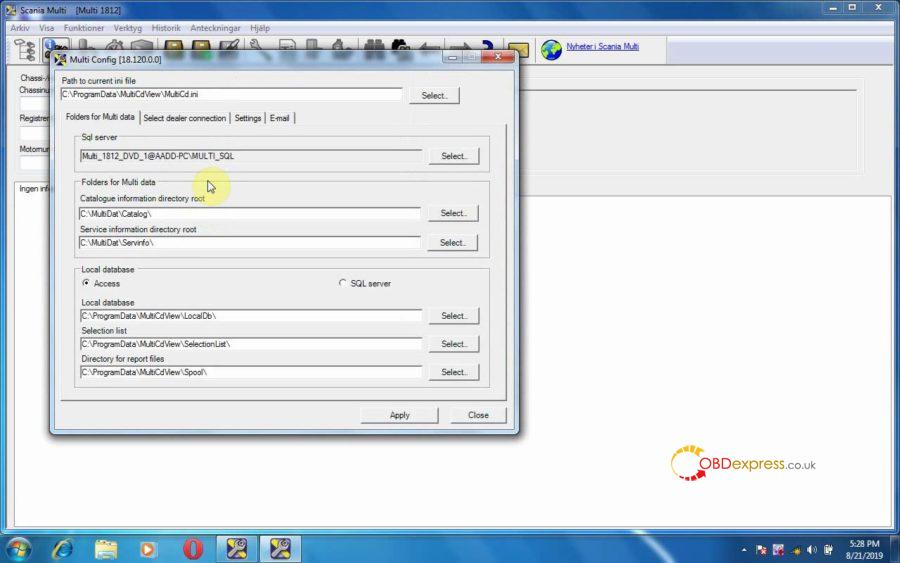
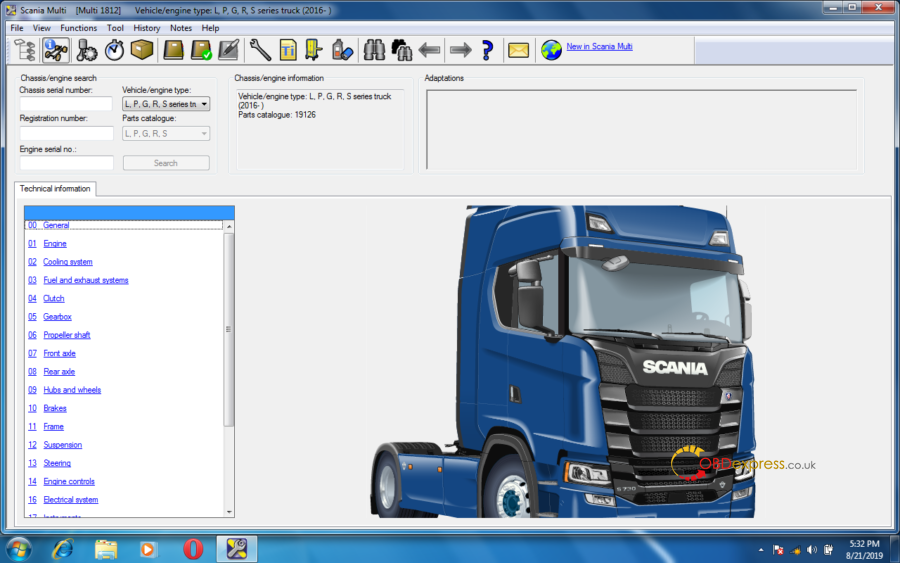
Scania Multi [Multi 1812] is open.
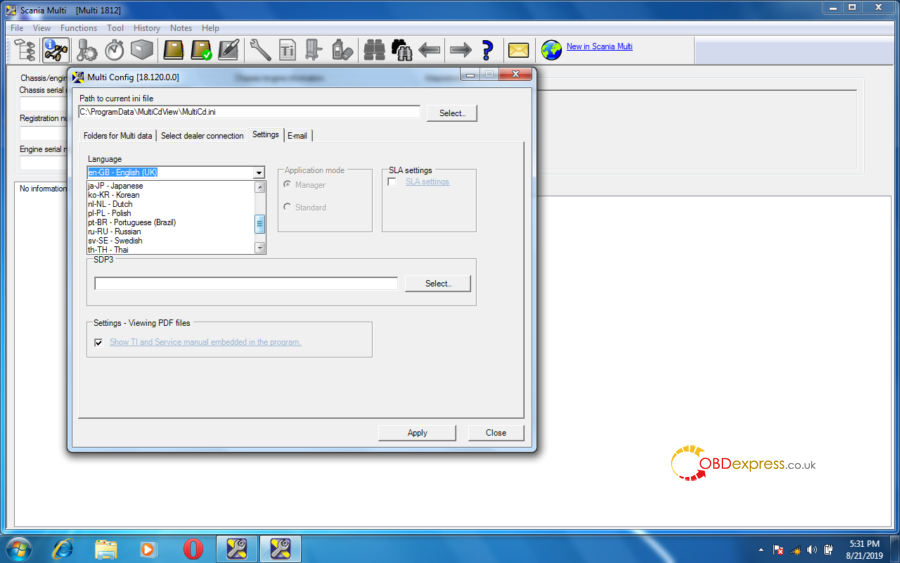
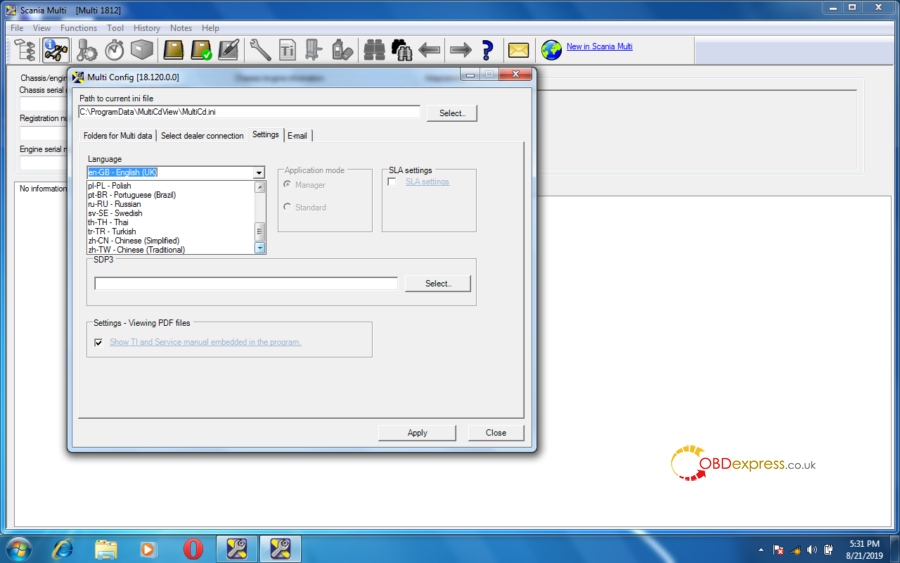
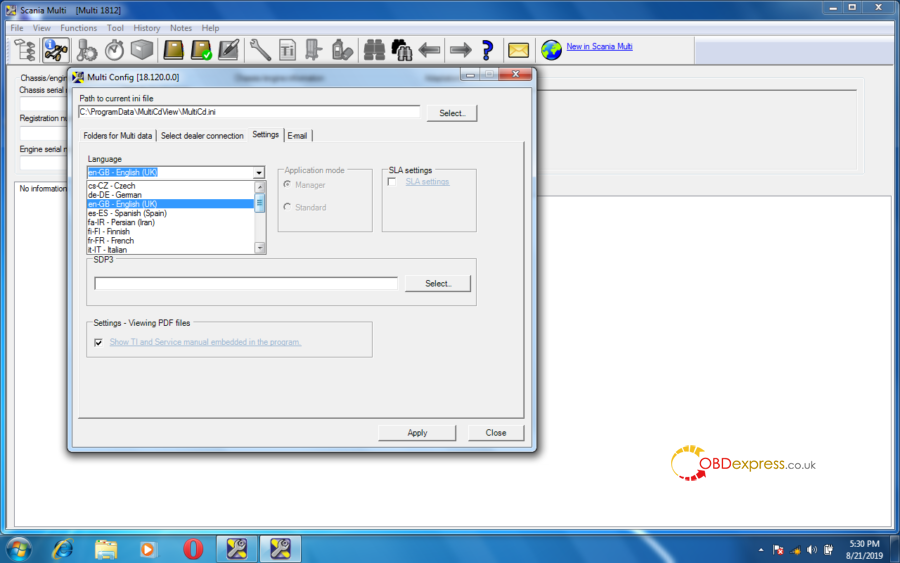
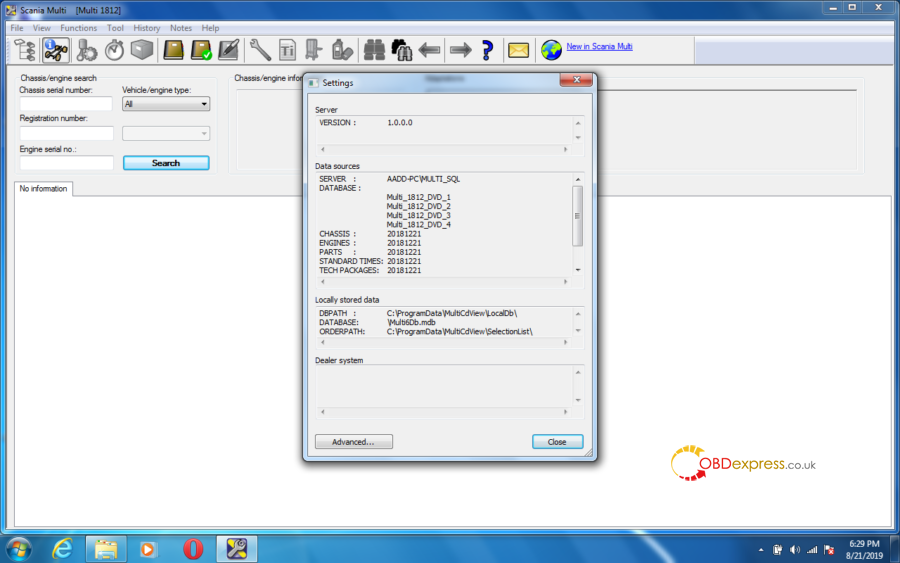
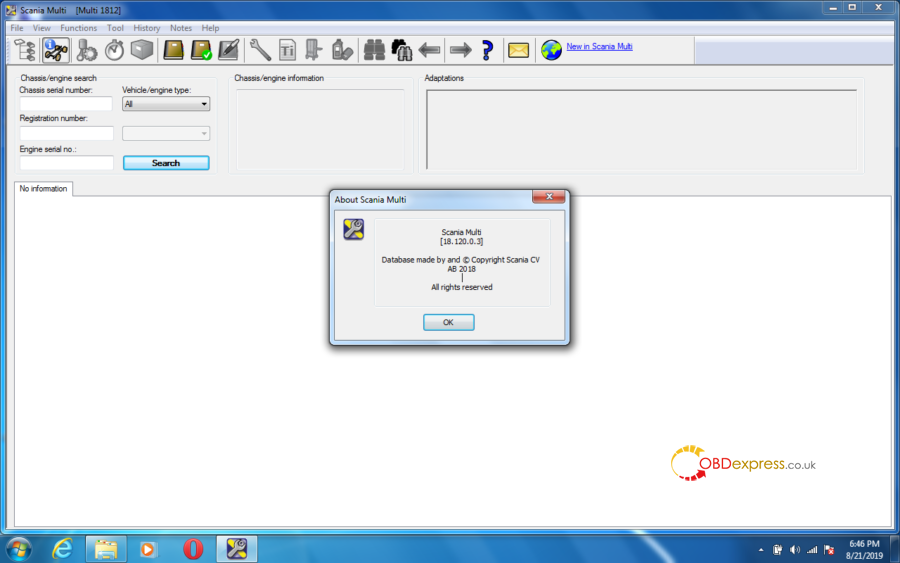
Please set language first, and you can check the version number.
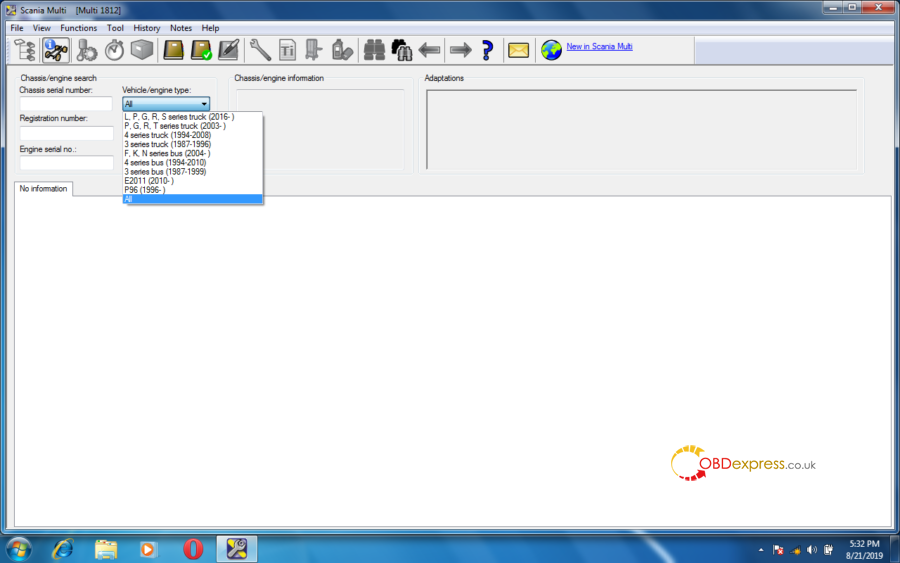
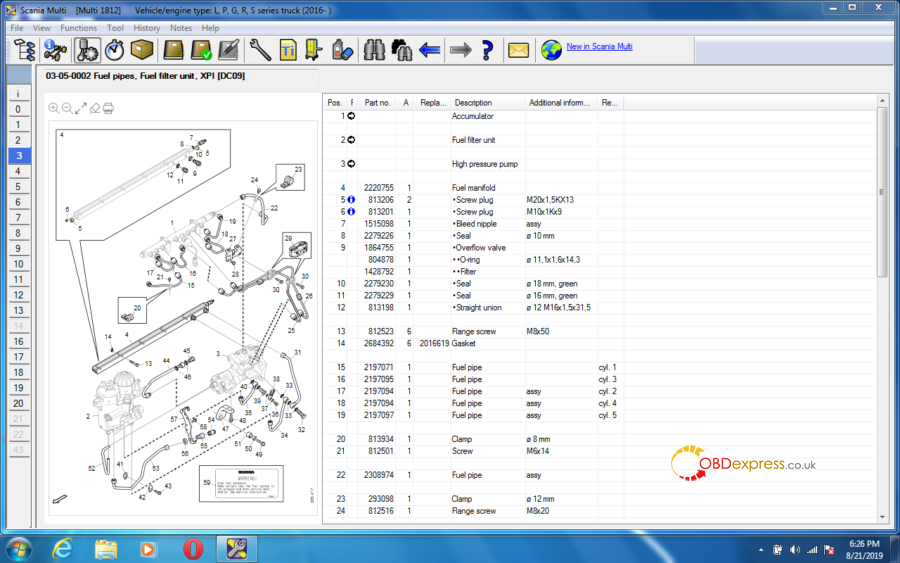
After that you can choose the vehicle /engine type to have technical information.
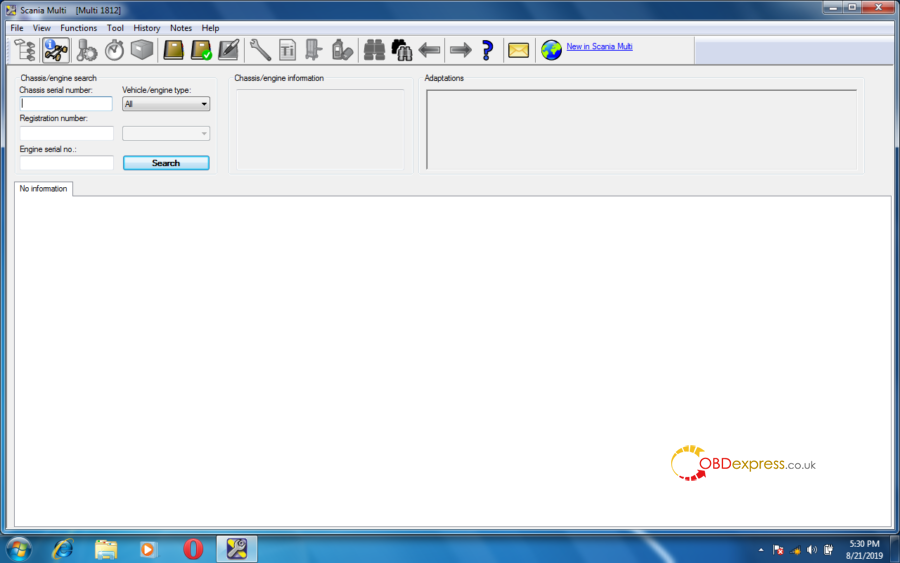
Good luck!
You can get Scania Multi software best price in here: http://www.obdexpress.co.uk/wholesale/scania-multi-spare-parts-catalog-service-information.html
Scania Multi 12.2018 tech support: www.obdexpress.co.uk
Posted by: OBDexpress.co.uk at
01:56 AM
| No Comments
| Add Comment
Post contains 327 words, total size 13 kb.
February 25, 2020
A part of users feedback " I can't see the images on Scania Multi 12.2018 after installing the software. " obdexpress.co.uk engineer replied " It is related to browser / computer operation system / computer, best run Multi software on win7 or XP, try WIN8 10 at your own lucky.
How to install Scania Multi 1812 [12.2018] on Win7?
Words & Images:
Part 1: Insert DVD1 to install.
Open my computer, right click on DVD (Multi 6.0) to select "Install or run program from your media.
If you get message that the computer needs .Net Framework 4.0 for Multi installation to complete. Please click on "OK" to install.
Tick "Accept the license to continue the installation".
Click on Next.
Install (Sql Server instance, Acrobat reader application)
Extracting files.
Please wait while Microsoft SQL Server 2012 Setup processes the current operation.
Install setup files.
Finalizing setting calculations.
Adobe Reader X (10.1.4) setup.
Back to right click on DVD, then select "Run Setup.exe".
Tick "Accept the license to continue the installation".
Next.
Windows install.
Please wait while Windows configures Multi.
DVD 1 is installed successfully. Insert DVD illustrations. Close this dialogue before removing DVD1.
Part 2: Insert DVD illustrations
Right click on DVD, choose "Run Setup.exe".
Accept the license.
Next.
Extract 64327 files from archive E.
DVD Illustrations is installed successfully.
Insert DVD2 with your servinfo language.
Close this diaglogue before removing DVD illustrations.
Part 3: Insert DVD2 to install.
Right click on DVD, choose "Run Setup.exe".
Accept the license.
Next.
Install.
Extract 2313 files from archive E.
Installation process is finished.
Part 4: Run Multi
Right click on "Multi" on the desktop to open.
Scania Multi [Multi 1812] is open.
Please set language first, and you can check the version number.
After that you can choose the vehicle /engine type to have technical information.
Good luck!
You can get Scania Multi software best price in here: http://www.obdexpress.co.uk/wholesale/scania-multi-spare-parts-catalog-service-information.html
Scania Multi 12.2018 tech support: www.obdexpress.co.uk
Posted by: OBDexpress.co.uk at
10:06 AM
| No Comments
| Add Comment
Post contains 327 words, total size 13 kb.
February 11, 2020
DTS Monaco running withSD Connect C4 Pluscan code Mercedes W205 successfully.
In detail:
Hardware:sdconnect C4 Plus(sdconnect C4 upgrade version in 2019)
Software:DTS Monaco (contained in sdconnect C4 Plus
Procedure:
- Mercedes W205 dashboard.

- Open DTS Monaco.

- Look at GFZ_Coding.


- Click on "Save".

- Choose "Read ECU identification only", then click on "Start".

- Choose "Clear errors, read data", then click on "Start".

- Choose "Variant Coding", then "ECU -IC222 (UDS_CAN_D), then "Connect".


Again, thanks tosd connect C4 Plusrunning with DTS Monaco.
Source:http://blog.obdexpress.co.uk/2020/02/11/how-to-code-mercedes-w205-with-dts-monaco/
Posted by: OBDexpress.co.uk at
09:41 AM
| No Comments
| Add Comment
Post contains 88 words, total size 8 kb.
February 02, 2020
Renault can clip v193.iso
https://mega.nz/#!M54VwYjR!B6ynZwNlUxZhQgxCQckKFBzGb4IvCtP0C1p8-LkZUdo
Security:unknown, from mhh forum.
Update:
No new vehicle for this version.
New Clip screen capture button at the bottom of each screen (or taskbar).
Year / Release Date:2019
OS:Windows 7, 10 x32
Language:Multilingual (English,French, German, Italian, Russian andother)
The program for the diagnosis of electronic systems of cars Renault, Dacia and Samsung. Working with scanner Renault CAN Cliponly. (Probe correction RLT2002 includes).


System requirements:
OS: Windows 7 32bit (Only)
CPU: 1.5 GHz or greater (Dual Core Or Higher)
RAM: 2GB
HARD DRIVE: 50GB Free Disc Space Minimum
INTERFACES: Original & Clone,SP19-Awith Full Chip AN2135SC AN2136SC,SP19-D,SP19-C WITH AN2131QC Chip
Question: Can I install on win 64bits?
Answer: Yes, you can. But drivers works only on x32 Windows.
Note: CAN CLIP can only be installed on 32bit based operating systems and requires Windows 7 SP1
or higher, if you have a 64bit system you can always use a virtual machine.

Functions:
- See all the information relating to the vehicle
2. Computer test
3. Automatic test of all computers
4. Airbag test
5. Scantool (OBD tests)
6. Base Doc (access to Technical Notes)
7. Physical measurements
8. Antipollution
9. Multimeter
Tested version: Renault can clip v191
https://mega.nz/#!KsRTmarL!J4Zx25JAGjU2ut6F1h_rjcw4n2wCK2Qjd_Ud506ijoo
Size: 2.70GB
Password: No need
Source:obdexpress.co.ukengineer
How to install Renault CAN CLIP V191 Software on Win7?
Source:http://blog.obdexpress.co.uk/2020/02/02/free-download-renault-can-clip-193-on-mega/
Posted by: OBDexpress.co.uk at
09:51 AM
| No Comments
| Add Comment
Post contains 224 words, total size 5 kb.
32 queries taking 0.0453 seconds, 125 records returned.
Powered by Minx 1.1.6c-pink.

