November 30, 2015
How to solve MB SD C4 Error Code 204
I have bought today batteries and powered on the device C4. Unfortunately the WLAN-Card isnt working.
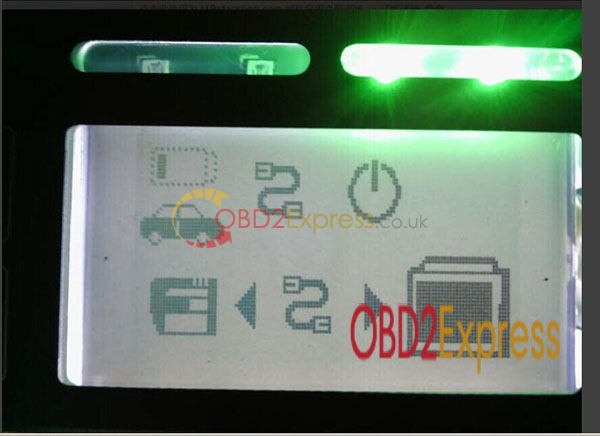
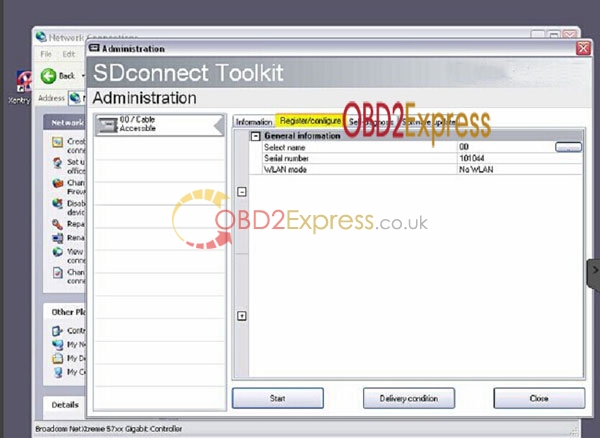
I can configure the C4 and in the details there is no WLAN-Card recognized, also on the Screen of the device you will see the Info to connect via cable.
For Test i have configured the C4 from a garage and that works fine, i can see the WLAN-Settings etc.
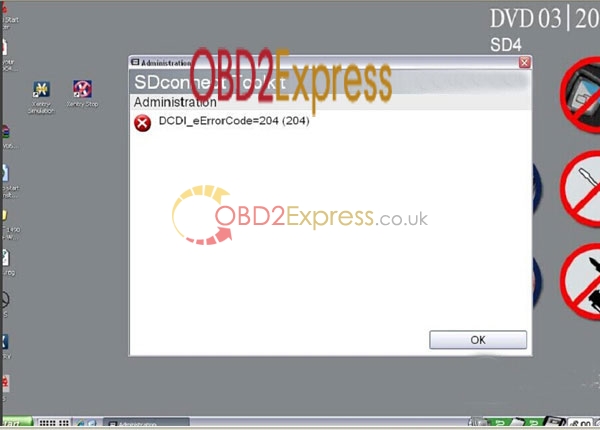
MB SD C4 meet this problem: "DCDI_eErrorCode=204 (204)" prompt, how to solve:
For this problem, it is caused by the following reasons:
1)you use other software not belong to use.
2)Your machine lost some files because of update.
3)Other reasons cause the machine cannot work normally. To solve this problem. you need to do the following step and update your firmware to latest:
Free download: MB SD STAR C4 FIRMWARE UPDATE INSTRUCTION
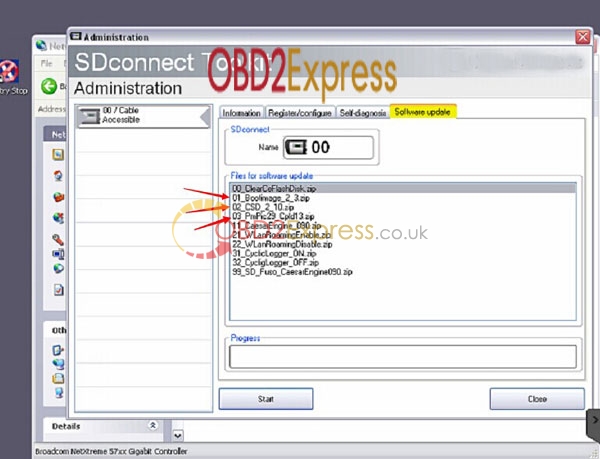
a, update these 3 files IN ORDER: 02—>01—>03
b, When you do this update, you need to install the NEW battery (do not use chargable battery), and connect OBD cable with your car to provide power. (If you do not connect the vehicles, you can use OBD 12V power adapter to provide the battery, otherwise it will get 662 update failure prompt).
Posted by: OBDexpress.co.uk at
08:38 AM
| No Comments
| Add Comment
Post contains 211 words, total size 2 kb.
November 27, 2015
How to do the self test for MB SD Connect Compact 4
MB SD Connect Compact 4 support reading out & erasing trouble code,reading the real-time data of sensor and actuator, coding and programming. MB SD Connect Compact 4 support wireless diagnose, support K line,CAN BUS and UDS protocol, fit all computers, with multi-language.
How to do the self test for this
MB SD STAR C4? What should i pay attention for?
If you want do self test, pay attention for the following tips:
1) Start your car, connect the device with your car.
2) Connect all the cables rightly and tightly.
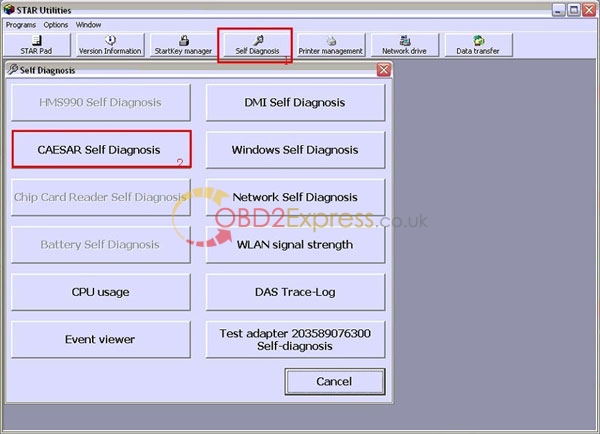
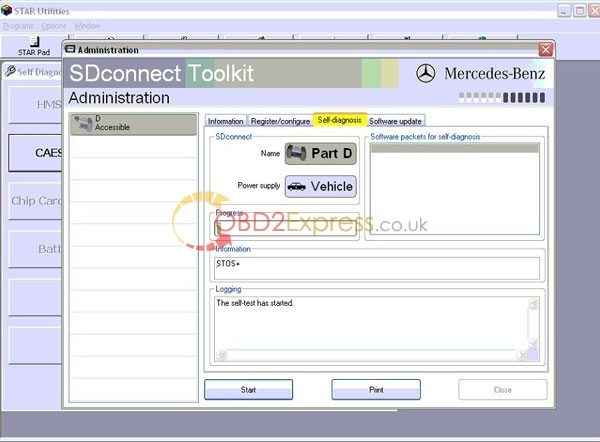
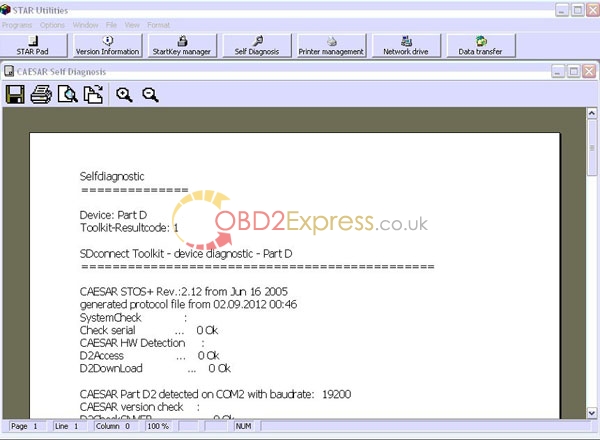
Here is the detailed steps for self test:
Posted by: OBDexpress.co.uk at
08:40 AM
| No Comments
| Add Comment
Post contains 111 words, total size 2 kb.
November 26, 2015
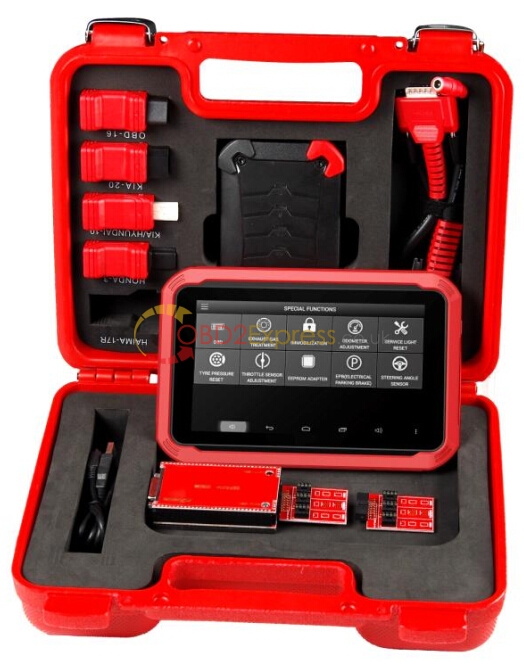
How to register XTOOL X100 PAD
Registeration steps:
1.Connect the X-100 pad to the network or wifi.
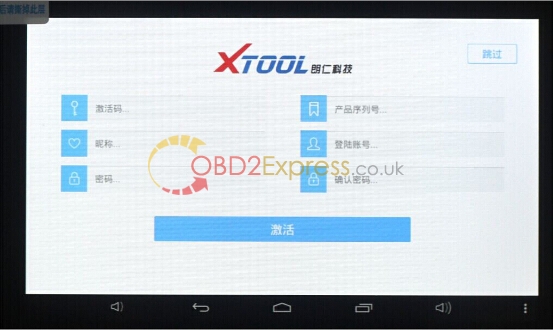
2.Start X100 tablet to go to the interface below
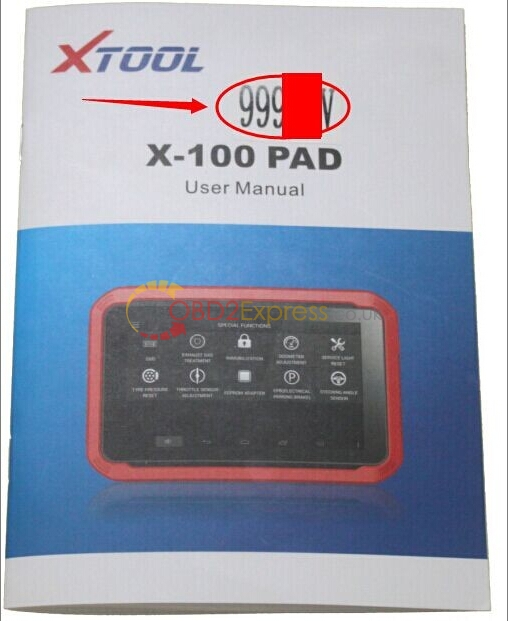
3.The activation code in on the cover of
X-100 PAD user manual book.
4. Complete all information in the start interface, then click Activate.
Note: The login account should be an email.
Do not forget your password.
The seller and factory are not responsible for this.
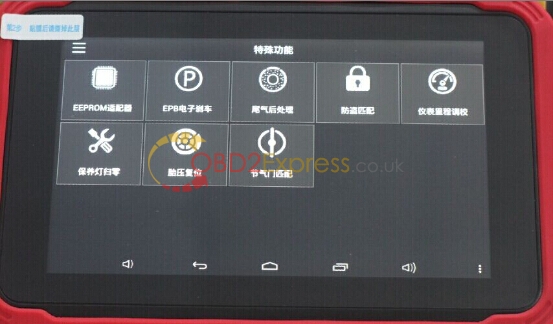
5. You will come to this interface after successful activation.
Done!
http://blog.obdexpress.co.uk
Posted by: OBDexpress.co.uk at
07:26 AM
| No Comments
| Add Comment
Post contains 96 words, total size 2 kb.
November 25, 2015
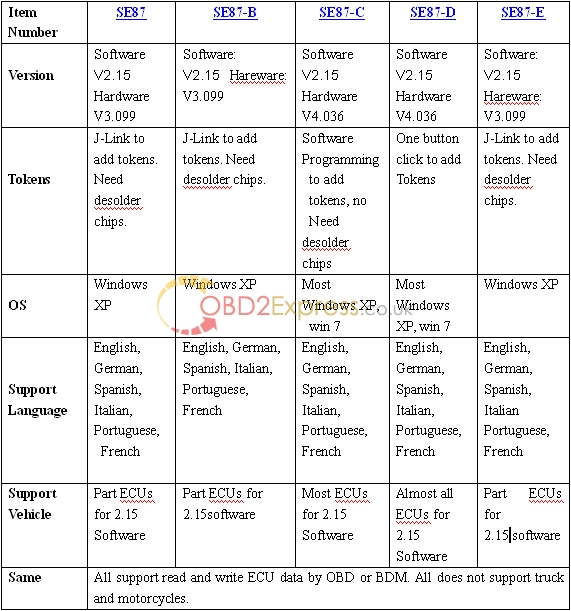
What is the difference for all KESS V2 series
Obd2express.co.uk is selling a series of
kess v2,they have own special features, how to choose the best for your car, what is the difference for all KESS V2 series,Look at the following table:
Posted by: OBDexpress.co.uk at
09:48 AM
| No Comments
| Add Comment
Post contains 44 words, total size 1 kb.
November 24, 2015
Piwis Tester II for Porsche "99010"error solution
When i connect this
piwis tester II with PC and Car, the 4 light on the main unit and usb is blinking slow constantly. If you put out the USB connector and then put back in you see all lights light up and then the same again. On the software, it give me prompt like this:
" 99010: This diagnostic system could not be initalised.
99011: Comm. module not connected. Please check.
Repeat communication setup with [F8].
Press [F12] to start simulation mode."
Solution:
This problem is your HDD lack one file. If you meet this problem. Please send your order number to sales@obdexpress.co.uk to contact us to solve it for you by teamviwer.
We will send you a file, then fix this online. It is very quick, will not be over 5 minutes.
Posted by: OBDexpress.co.uk at
08:38 AM
| No Comments
| Add Comment
Post contains 145 words, total size 1 kb.
November 20, 2015
How to online update xhorse VVDI2 Key Programmer
New VVDI2 Tool is new generation VVDI interface,
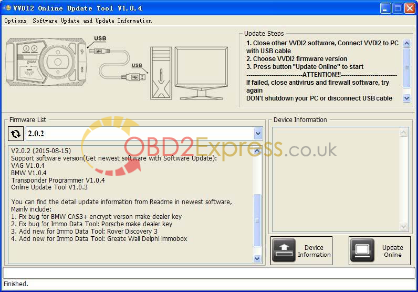
VVDI2 program can get the latest software version from server automatically online, and the main upgrade step is showed as following.
Operating system: Windows XP
Language: Chinese/ English
Update firmware steps:
1)Close other VVDI2 programs, connect VVDI2 to PC with USB cable
2)Choose VVDI2 firmware version from Firmware List
3)Press button Update Online, wait the progress end
4)If failed to get firmware list or get something like "communicate with server error!†while update your device, close antivirus and firewall programs, try again. Change your internet provider once failed again
DON’T shutdown your PC or disconnect USB cable while update device
1.1. Refresh Firmware List
Update Online Tool will connect to server automatically and download the newest firmware information. You can press flash picture button if there’s no display. After you get information success, will display
current support firmware list, the software support by specify firmware and the mainly include update information
1.2. Device Information
After connect VVDI2 to PC and install USB drivers, Press button Device Information, will show you VVDI2 Serial Number, current firmware version in VVDI2, authorize information etc
1.3. Update Online
After connect VVDI2 to PC and install USB drivers, choose you expect firmware version from firmware list, Press button Update Online, wait progress finish (about 2 minutes) (Require internet)
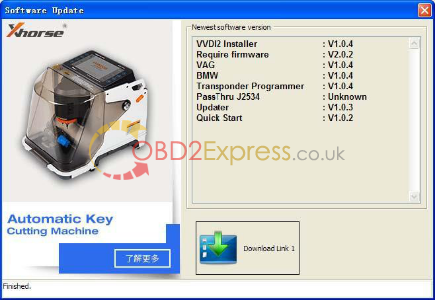
2.1. Software Update
This function require internet support
Use "Menu ->Software Update ->Software Update†to obtain VVDI2 latest software version, the software version require firmware version etc (PICTURE shown as follows). Press Download Link will download the latest software
If there’s no display for software version, shutdown your firewall and antivirus programs, try again
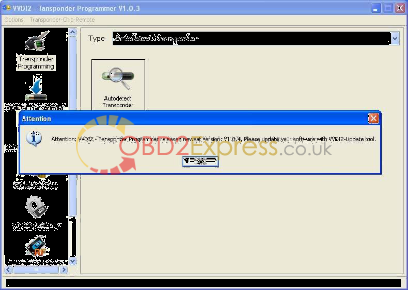
While you use VAG, BMW, Transponder Programmer programs, if you get some window like (PICTUREs shown as follows), that means your tool have newest software released. Please download newest software with Update Online
2.2. Latest Update Information
This function require internet support
Use "Menu->Software Update ->Latest Update Information†to obtain VVDI2 latest update information
2.3. History Update Information
Use "Menu->Software Update ->History Update Information†to obtain
VVDI2 history update information
Posted by: OBDexpress.co.uk at
06:17 AM
| No Comments
| Add Comment
Post contains 357 words, total size 4 kb.
November 16, 2015
BMW ICOM A2 B C ISTA D ISTA P IPS Fault code V999 solution
Error:
Data is only stored locally. Thus the process for overlapping cooperation is not available.
Cause: ISPI Process services not available (IPS fault code V999)
Note: The status of ISPI process services can be determined using the function ‘IPS Check’ in the ISPI Admin Client.
Software gives prompt, after i click OK. He test ISTA P, ISTA D and other options, all works normally. This will have influence for usage? Can i remove it?
Answer: For bmw icom after 2015.7. This is the normal prompt. Just click OK and go on to use this software. It has no influence for software functions.
Posted by: OBDexpress.co.uk at
08:53 AM
| No Comments
| Add Comment
Post contains 133 words, total size 1 kb.
31kb generated in CPU 0.0119, elapsed 0.0358 seconds.
32 queries taking 0.0281 seconds, 123 records returned.
Powered by Minx 1.1.6c-pink.